
How to fix Instagram automation not working
If your Instagram automations are set up but nothing is firing, it's almost always missing Instagram permissions. Here's the quick fix: remove the old app access, log out of LinktoDM, and reconnect with every permission checked. Follow the visual steps below, then re-run a test automation.
Step 1
Settings & activity
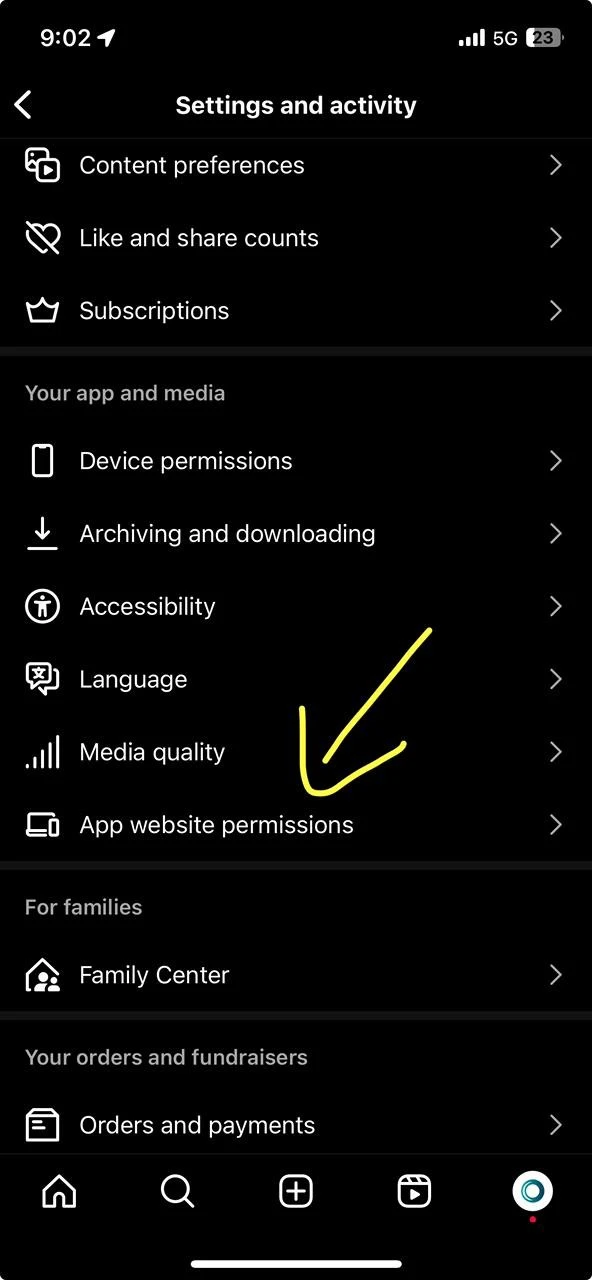
Open Instagram → Settings and activity → App website permissions.
Step 2
Apps & websites
.D6n4SCup.webp)
Choose Apps and websites → on the Active tab, select LinktoDM → View and edit.
Step 3
View & edit permissions
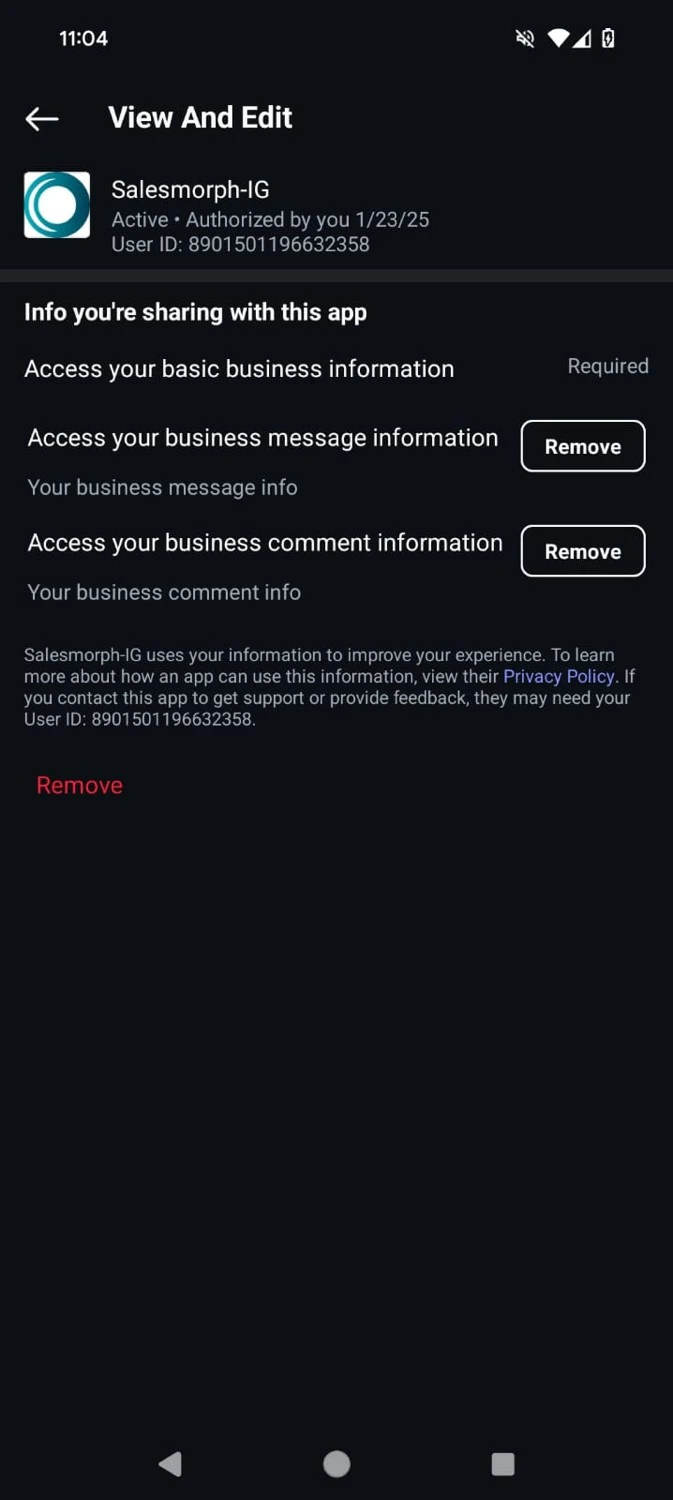
Tap Remove to revoke the old connection, then reconnect from LinktoDM with all permissions enabled.
Reset permissions from Instagram (do these first)
- Open Instagram and go to Settings and activity.
- Tap App website permissions.
- Choose Apps and websites and stay on the Active tab.
- Select LinktoDM and tap View and edit.
- Tap Remove to revoke existing permissions.
Reconnect LinktoDM with full access (right after removal)
- Log out of your LinktoDM account.
- Log back in and reconnect Instagram (do not use email login; use Facebook/Instagram OAuth).
- When Meta prompts for permissions, make sure all permissions are checked before continuing.
After reconnecting
Trigger a test automation (e.g., comment on a post with an active automation) to confirm it's working. If automations still don't fire, reach out to LinktoDM support with a screenshot of your permissions screen.