"Hey, did you see my DM?"
You didn't. You check your inbox. Nothing. You check your requests. Nothing there either.
But the message exists. It might be a collab offer, a customer with a question, or a friend's new account. Instagram decided it looked suspicious and filed it in its spam folder, without telling you.
No notification.
No badge.
No red dot.
Just silence.
So where does Instagram actually put these messages, and how many have you already missed?
Does Instagram Have a Spam Folder?
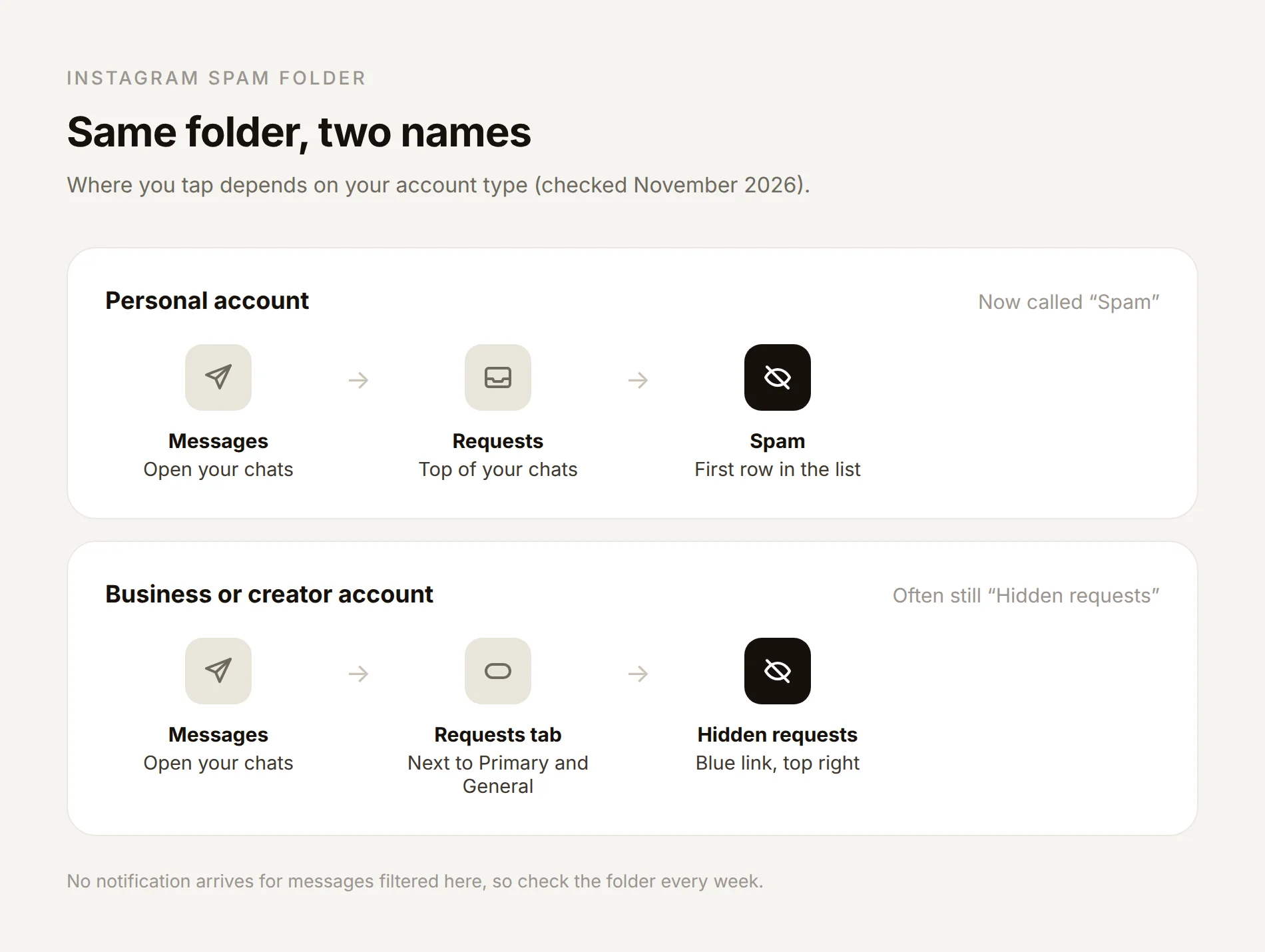
Yes. For years it was called Hidden requests. Instagram has now started renaming it to Spam. Open your message requests on an updated personal account and you'll see Instagram's own banner: "Hidden requests is now called Spam."
Here's the catch: the rename hasn't reached every account. When we checked in November 2026, a personal account showed Spam, while a business account still showed Hidden requests. It's the same folder, with a different name and a different place to tap.
- Instagram's spam folder lives inside your message requests, not your main inbox.
- On personal accounts it's now called Spam. Many business and creator accounts still see Hidden requests.
- You get no notification for messages filtered there, so check it every week.
- The sender can't tell you've seen their message until you accept it.
- If your DMs land in other people's requests, an opener message with a button gets you into their inbox.
Where Is the Spam Folder on Instagram?
Where you tap depends on your account type.
On a personal account:
- Open Instagram and tap the messages icon.
- Tap Requests at the top of your chats. This opens Message requests.
- Tap Spam. It's the first row, at the very top of the list.
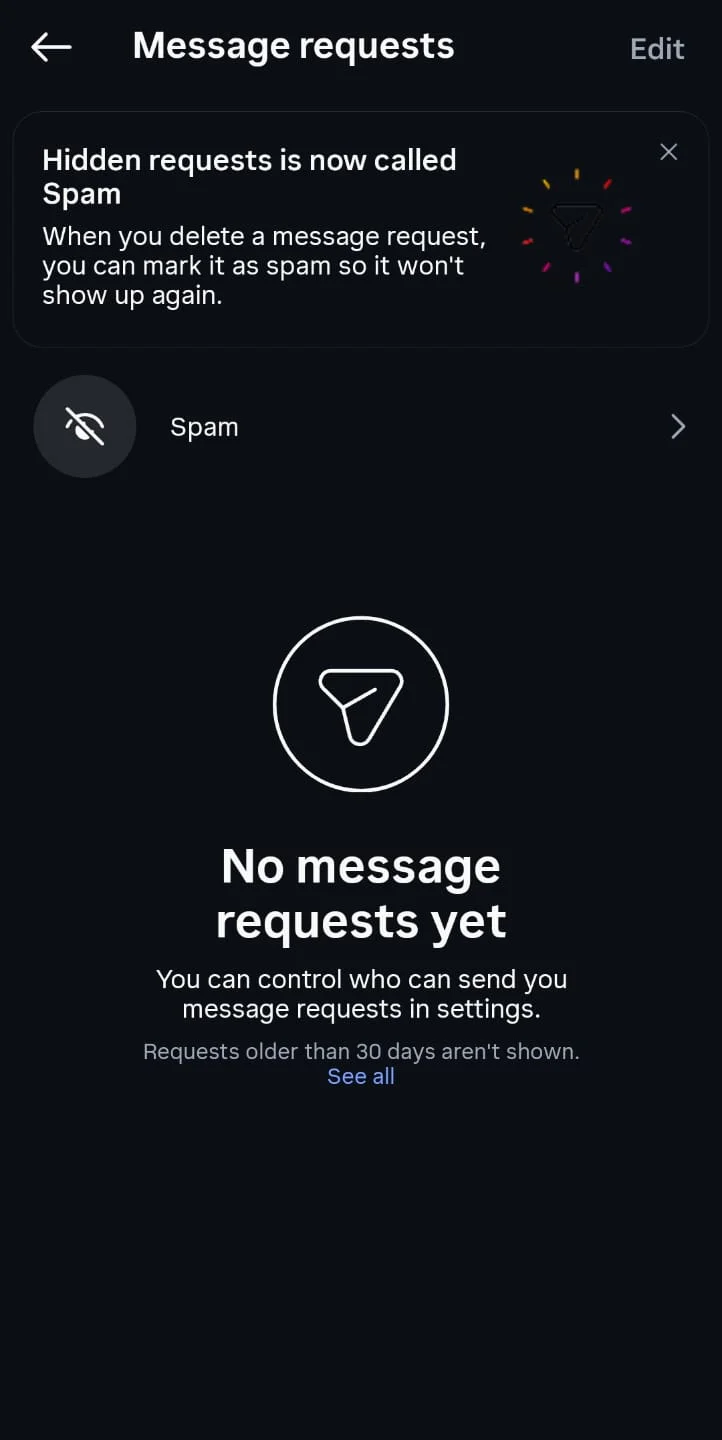
On a business or creator account:
- Open your messages.
- Tap the Requests tab (next to Primary and General).
- Tap Hidden requests, the blue link at the top right of the list.
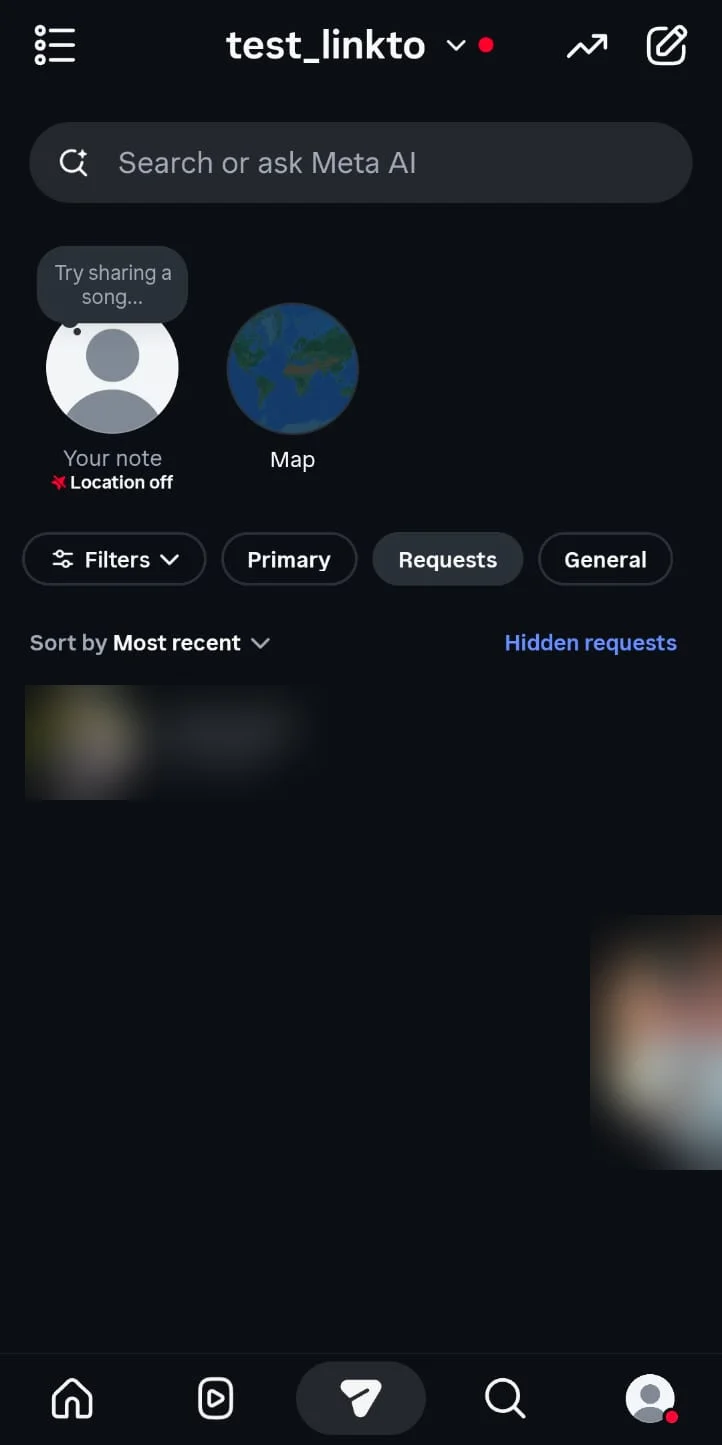
Business accounts get a handy extra here: a Filter button inside Hidden requests. You can show only Verified profiles, Businesses, accounts with 10K+ followers, your Followers, Story replies or Unread messages. If you're hunting for a missed brand deal, filter by Businesses or Verified profiles first.
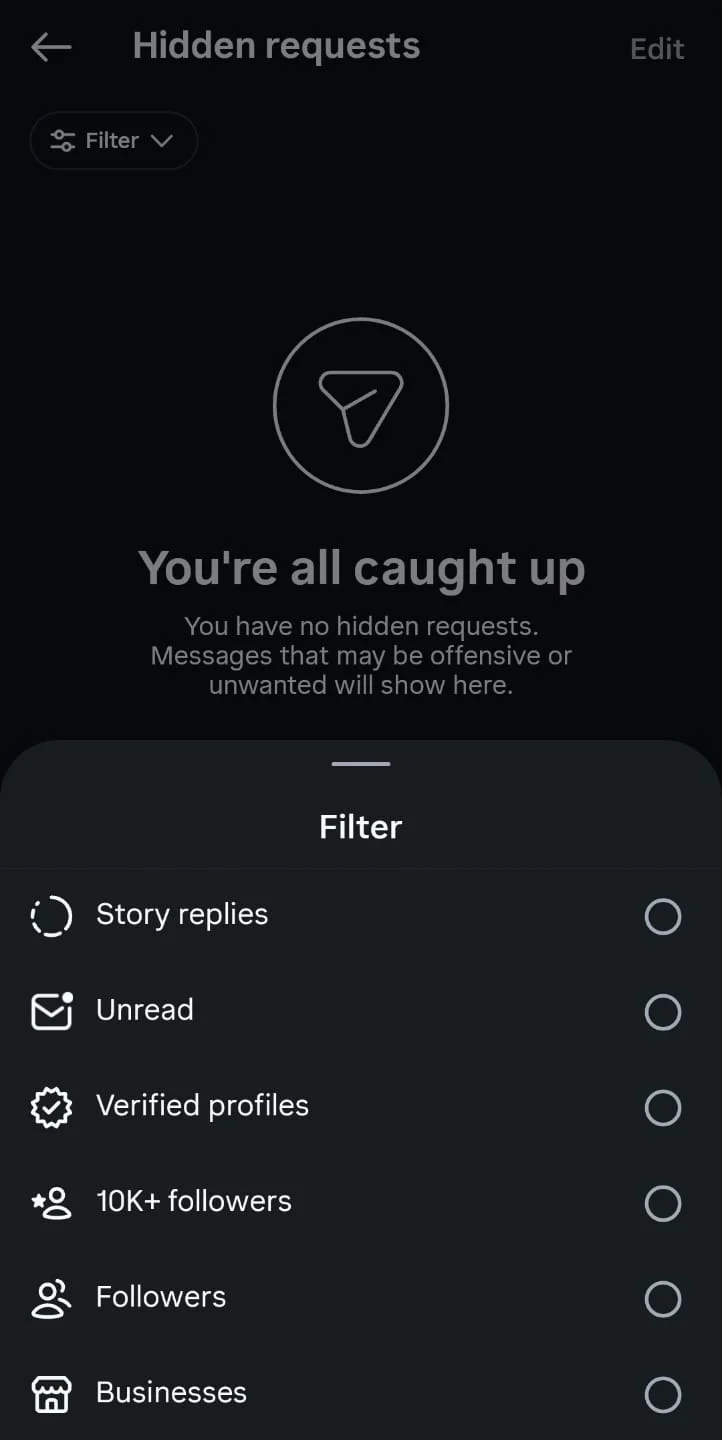
Found something important? Open it and tap Accept. The chat moves into your inbox. Don't worry about seeming rude: Instagram says senders won't know you've seen their message until you accept.
Heads up: your Message requests list only shows requests from the last 30 days. Older ones are still there, but you'll need to tap See all at the bottom to find them.
Why Do Real Messages End Up in Instagram's Spam Folder?
Instagram describes the folder as the place where "messages that may be offensive or unwanted" go. Its filters are cautious, which is mostly a good thing, but they catch plenty of genuine messages too. A DM is more likely to be filtered when:
- The sender is new or unfamiliar. A brand-new account with no profile photo and few posts looks just like a spam account. So do plenty of small brands and real customers.
- It contains a link. A first message from a stranger with a URL in it is classic spam behaviour, even when the link is a genuine collab brief.
- It matches your Hidden Words. If you've turned on Hidden Words or added your own words, any request containing them is filtered.
- It reads like a template. "Hi dear, we love your content! DM us for a collaboration 💰" gets filtered, and sometimes a real agency writes exactly like that.
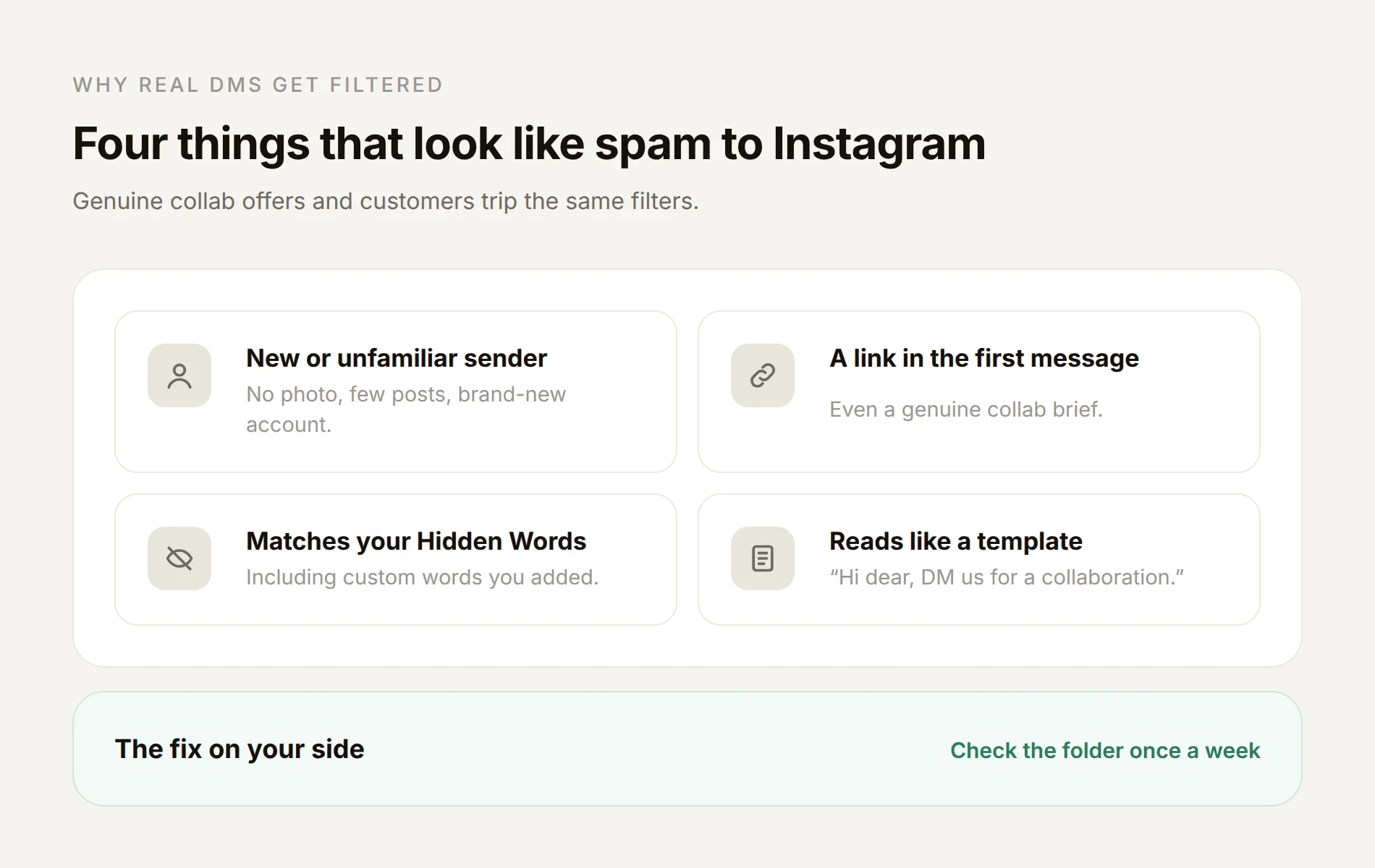
The fix on your side is simple: check your spam folder once a week. Set a reminder. Creators regularly find paid offers in there that have been waiting for weeks.
How to Control What Goes to Spam
You have two settings to work with:
- Hidden Words: tap Manage Hidden Words preferences inside the Spam (or Hidden requests) folder. You can turn filtering of message requests on or off and add your own words to hide. If real messages keep disappearing, check whether one of your custom words is too broad.
- Message controls: in your messaging settings, choose who can send you message requests: Everyone, Your followers or No one.
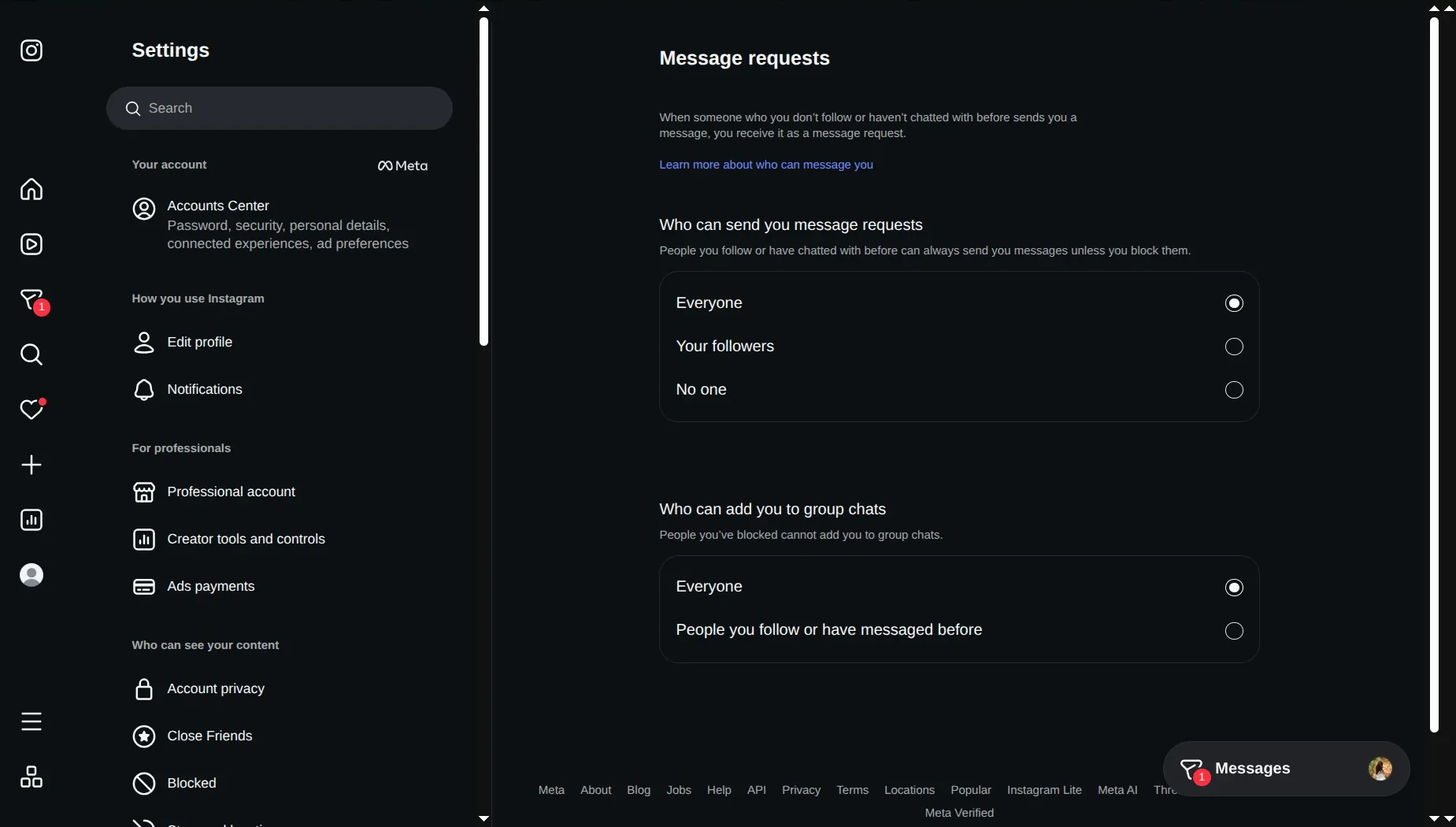
A word of caution: setting requests to "Your followers" or "No one" cuts the spam, but it also shuts out every new customer, collab and fan who doesn't follow you yet. For most creators and businesses, it's better to leave requests open and check the folder regularly.
The Flip Side: When Your DMs Land in Requests or Spam
Here's what most guides skip. If you sell, coach or create on Instagram, the bigger problem usually isn't messages you miss. It's messages you send that nobody sees.
Instagram's own settings page explains it: when someone you don't follow, or haven't chatted with before, messages you, it arrives as a message request. That works both ways. Say someone comments "LINK" on your reel and your DM with the link goes out. If they've never chatted with you, it lands in their requests, a tab most people rarely open. Your link, your freebie, your sale sits there unseen.
The message was delivered. It just wasn't seen. There are two ways to fix that:
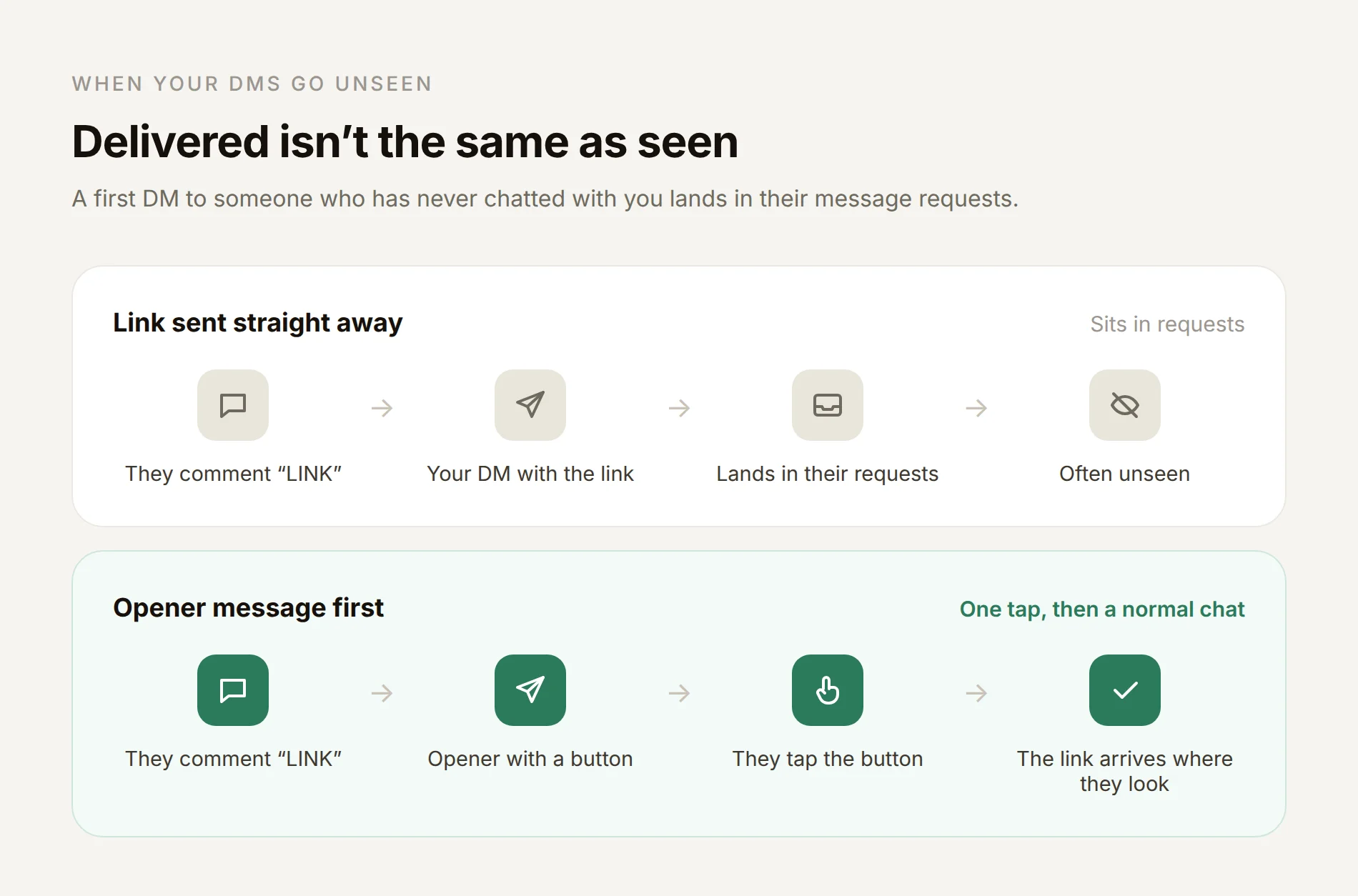
1. Send an opener message first. Instead of sending the link straight away, send a short, friendly greeting with a button, like "Hey! Tap below and I'll send it over 👇". The moment they tap it, they've interacted, and the chat behaves like a normal conversation from then on. Your real message arrives where they'll actually see it. That's exactly what LinktoDM's opener message does.
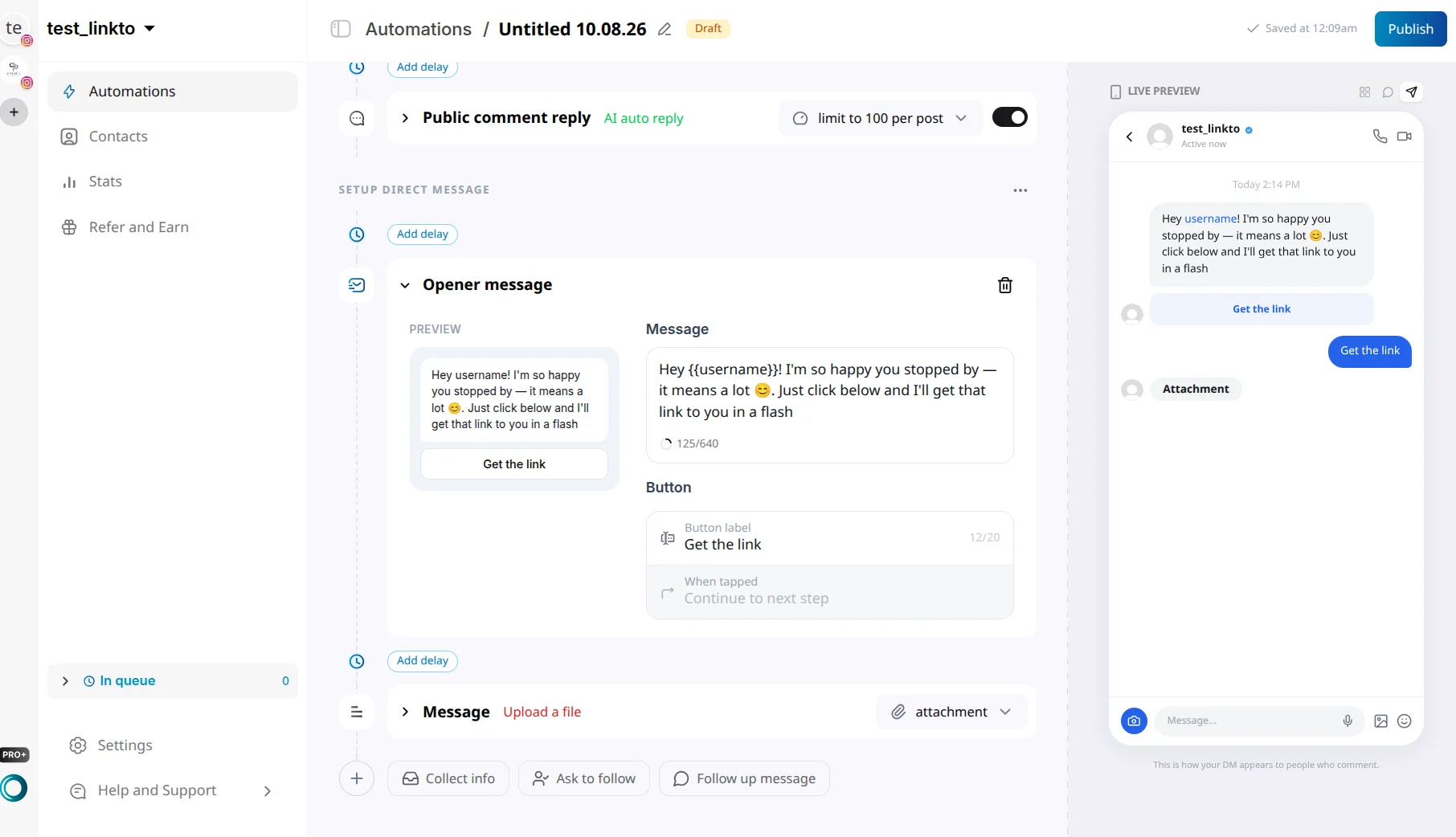
2. Turn commenters into followers. LinktoDM's Ask to Follow step checks whether a commenter follows you before it sends the link. You gain a follower, and they've tapped a button in your chat on the way.
Bonus tip: add "Check your DMs (and your requests!) 📩" to your public comment reply. It costs nothing, and people will know where to look.
"But Won't Automated DMs Get My Account Flagged as Spam?"
Not when the automation follows Meta's rules. Accounts get flagged for cold-messaging strangers in bulk. LinktoDM never does that. It only replies to people who reached out first, by commenting, replying to a story or sending you a DM, and it does so through Meta's official API.
LinktoDM is an official Meta Business Partner, and more than 22,000 creators use it to automate their Instagram DMs.
If someone tells you they never got your DM, work through public reply sent but no DM in the docs. Most of the time, the answer is "it's in their requests".
Which Plan Do I Need?
Opener messages are included even on the Free plan. Follow-up messages for people who didn't open your first DM, and Ask to Follow, are available on the Pro plan and above. See the pricing page for current plans.
Frequently Asked Questions
Where is the spam folder on Instagram?
Is Hidden requests the same as the Instagram spam folder?
Does Instagram notify you about messages in the spam folder?
Will someone know if I open their message in the spam folder?
Why can't I find the spam folder on Instagram?
Why do my automated Instagram DMs go to requests?
Check Your Spam Folder Today
Go and look now: Messages → Requests → Spam (or Hidden requests). There's a real chance something you've been waiting for is sitting in there.
And if you're the one sending DMs, make sure yours don't end up as someone else's forgotten message. One tap on an opener is all it takes.