




An Instagram auto DM is a direct message that sends automatically when someone triggers it. The trigger can be a keyword comment on your post or reel, a story reply, or a keyword sent in your DMs.
To set one up, connect an Instagram Business or Creator account to a tool built on Meta's official Graph API. Then create a trigger keyword, write your message, test it, and activate. Setup takes under five minutes and runs 24/7.
- What you need: an Instagram Business or Creator account, a connected Facebook Page, an API-based auto DM tool, and the link or message you want to send.
- Quick setup: 1) Connect Instagram to your tool. 2) Create an automation and set a trigger keyword. 3) Write your message. 4) Test it. 5) Activate.
- Best for: affiliate creators, coaches, course sellers, and D2C brands — anyone getting "link?" comments they can't keep up with.
How auto DM works on Instagram
Creators and brands get a constant stream of comments, story replies, and DMs. Replying by hand is slow, and every missed message is a missed lead. An auto DM fixes that: it sends an instant, on-brand response the moment someone engages, so conversations keep moving while you're offline and no lead slips through.
The technology behind it is Meta's Instagram Graph API, the official system for approved third-party tools. Your auto DM tool connects through this API, watches for the triggers you set, and sends messages on your behalf. The flow is simple:
- You set a trigger word, for example LINK or INFO.
- Someone comments that word on your post, replies to your story, or DMs it to you.
- Instagram notifies your auto DM tool through the API.
- The tool sends your pre-written message to their inbox.
- They get your link within seconds, even at 3am while you sleep.
What auto DM can do
- Send affiliate links the moment someone comments a keyword
- Deliver lead magnets (PDFs, guides, checklists) automatically
- Share booking links (Calendly, Cal.com) for discovery calls
- Reply to story interactions with a relevant link or offer
- Collect an email or phone number before sending the main link
- Send a timed follow-up to people who didn't reply
What auto DM can't do
- Send unsolicited DMs to followers who haven't engaged with you (that's spam)
- Message people outside Instagram's allowed messaging window
- Work on a Personal account (Business or Creator only)
- Bypass Instagram's API rate limits
Can you auto DM new followers on Instagram?
Short answer: not automatically, and not the way some tools imply. Instagram's official Messaging API only lets you send a DM after a user interacts with you, usually within a 24-hour messaging window.
That interaction means they comment on your post, reply to your story, or message you first. There is no compliant way to blast an unsolicited DM to every new follower, and tools that promise it put your account at risk.
What does work, and stays within Meta's rules, is interaction-triggered messaging: comment-to-DM automation, story-reply automation, and keyword triggers.
Someone comments "LINK" on your reel, replies to your story, or DMs a keyword, and the auto DM fires. It's permission-based, higher-converting, and safe. Tools built on the official API keep you on the right side of those limits.
Instagram's native options (and their limits)
Before reaching for a tool, it's worth knowing what Instagram gives you for free. From the app or Meta Business Suite you can set up:
- Quick replies / saved replies: pre-written responses you insert manually into a chat.
- Away messages: an automatic reply sent when you're offline (Business accounts).
- Greeting & FAQ messages: a welcome message and tappable FAQ buttons when someone opens a new chat.
These are useful for basic coverage, but they share one hard limit: none of them trigger on keywords, comments, or story replies. You can't turn a comment into a DM, fire a message on a specific keyword, or send timed follow-ups. For real comment-to-DM flows, you need a tool built on Instagram's official API.
What you need before you start
Five things need to be in place. Missing any one will block your setup.
1. An Instagram Business or Creator account
Auto DM only works with Business or Creator accounts. Personal accounts don't have API access. Switching is free: Settings → Account type and tools → Switch to professional account → Creator or Business. You can switch back anytime, but your automations stop when you do.
2. A Facebook Page connected to Instagram
Instagram's API runs through Meta, so you need a Facebook Page linked to your account. If you don't have one, Instagram prompts you to create it during the switch. It takes a minute, and you never have to post on it. It just needs to exist.
3. An API-based auto DM tool
Pick a tool built on Meta's official Graph API. Never use a browser bot that logs in and mimics taps, since that violates Instagram's terms. The main options for creators in 2026:
| Tool | Starting price | Best for |
|---|---|---|
| LinktoDM | From $15/mo (₹699/mo) | Indian creators & D2C brands; flat pricing, Meta Business Partner |
| CreatorFlow | $15/mo flat | Solo creators wanting a simple, modern setup |
| ManyChat | Free to 1,000 contacts, then from $15/mo | Multi-platform (IG + Messenger + WhatsApp) |
| LinkDM | $19/mo | Creators wanting an established track record |
Pricing verified June 2026 from each provider's pricing page. Plans and limits change, so check current pricing before you commit.
If you're weighing options directly, compare LinktoDM against ManyChat and LinkDM.
4. The link or asset you'll send
Have your destination ready and tested: an affiliate link, a PDF or guide, a Calendly/Cal.com booking link, a product page, or a landing page for email capture. Sending people a broken link wastes their engagement.
5. A post with engagement (or one ready to publish)
You need content to attach your automation to: an existing post still getting comments, or a new post you're about to publish. Start with one, prove it works, then scale to the rest of your content.
How to set up an auto DM (works with any tool)
The buttons differ between tools, but the concepts are identical. Here's the sequence that applies everywhere.
Step 1: Switch to a Business or Creator account
Go to Settings → Account type and tools → Switch to professional account, choose Creator or Business, pick a category, and confirm.
Then open Settings → Messages and story replies and, under Message requests, set it to Everyone. This lets your inbox receive messages from new users, which auto replies need in order to work.
Step 2: Confirm your inbox is ready
On a professional account you'll see a Primary inbox, a General inbox, and Message requests. These tabs only appear for Business and Creator accounts, which is why Step 1 matters.
Step 3: Connect your account to your tool
Create an account on your chosen tool and click Connect Instagram. You'll see Meta's official authorization screen, so you're logging in through Instagram, not handing your password to anyone. Grant the requested permissions (read comments, send DMs) and your account is linked.
Step 4: Create an automation and set your trigger
Choose the automation type: comment-to-DM (post/reel), story reply, or chat (DM). Then pick the post and set your trigger keyword.
Keep the keyword short and obvious (one word people will actually type). Enable case-insensitive and "contains" matching, and add a couple of variations like LINK, LINKS, SEND.
Step 5: Write your message, test, and activate
Write a short, human message that delivers the link in the first couple of lines (templates below). Then test it: comment your trigger word from another account, wait a few seconds, and confirm the DM arrives and the link works.
Once it does, activate. Every qualifying interaction now becomes an instant DM.
Setting it up in LinktoDM (worked example)
To make the steps concrete, here's how the same flow looks in one tool. LinktoDM is built on Meta's official Graph API and is a Meta Business Partner, so everything below stays inside Instagram's rules.
Post automation: comment to DM
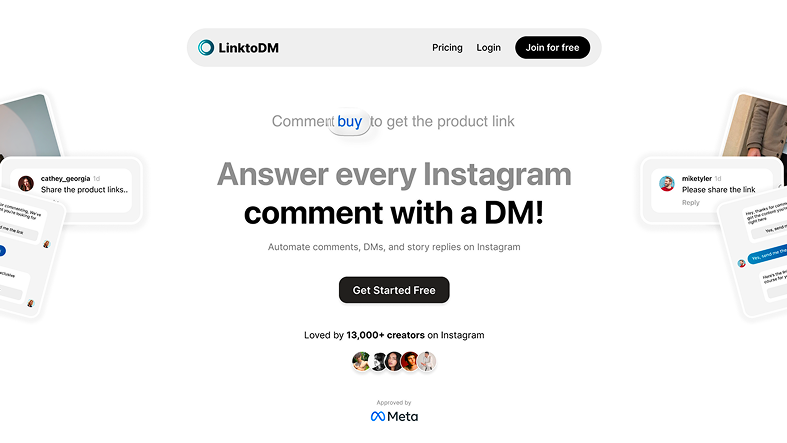
A huge share of engagement happens in post and reel comments. With LinktoDM's comment automation, you turn those into DMs instantly:
- Create a new automation and select Post automation.
- Choose the post or reel you want to automate.
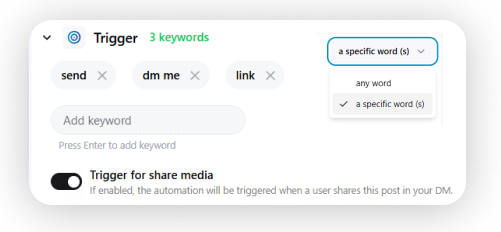
- Add triggers: keywords like "hey", "link", or "send".
- Add auto replies: write the public comment reply and the DM. Use manual or AI replies, add variations to keep it natural, and cap replies at 100, 200, or unlimited per post.
- Build your DM with message actions: opener, collect email, collect phone, follow-up, or a standard message.
- Save and activate.
Story automation: auto reply to story interactions
Create a Story automation, choose the story, set the keywords or reactions that fire the DM, write your message using the same actions as post automation, then save and activate. Every reply and reaction becomes a conversation automatically.
Chat automation: guided DM flows
With chat automation you design how DM conversations start and where they lead: keyword triggers, reply buttons, and a guided flow. It's all automatic, with no manual typing.
Extras worth setting up
- Templates: import a ready-made flow (comment replies, welcome DMs, contact capture) in one click and customize it.
- Backtrack: automatically reply to comments on older posts so no lead is left hanging.
- Follow-up messages: send a second message after the first interaction to lift response rates. You control the wait time and conditions.
- Ask-to-Follow: prompt users to follow you before delivering the link, turning interactions into followers.
- Analytics: track Hits (triggers fired) and Clicks (link clicks) per flow, then refine based on data.
Auto DM templates that convert
Copy these, swap in your link, and keep them under ~100 words. People skim DMs on their phones, so deliver value fast.
Affiliate / product link
Hey! Here are my [product] picks with links:
[your-link]

Pro tip: start with [one item], it's the one people message me about most.

Let me know which one you grab!
Free lead magnet
Hey! Sending you the [guide name] now:
[your-link]

It's the exact [process] I used to [result].

Reply if you have any questions, happy to help!
Discovery / booking call
Hey! Thanks for your interest in [service].

Here's my calendar for a free 15-min call:
[your-booking-link]

I only take a few clients a month, so grab a slot that works for you.
Launch / discount code
Hey! Here's everything inside [product]:
[your-link]

Use code SAVE15 for 15% off. It expires in 48 hours.

Any questions? I'm right here.
Story reply
Thanks for replying to my story!

Here's the [link/resource] I mentioned:
[your-link]

Tell me what you think once you've had a look.
Email capture (two-step)
Hey! I'd love to send you the [resource].

What's the best email to send it to? Drop it below and I'll fire it over right away.
When to use auto DMs (best use cases)
1. Affiliate link distribution
Every "link?" comment is a potential commission. Auto DM delivers it before they lose interest. Triggers: LINK, SHOP, BUY. Focus: deliver the link immediately, add one helpful tip.
2. Lead magnet delivery
Grow your email list on autopilot. Triggers: FREE, GUIDE, PDF. Focus: deliver value first, then ask for the email.
3. Discovery call booking
Stop manually pasting your booking link. Triggers: INFO, COACHING, BOOK. Focus: create gentle urgency (limited spots), make booking one tap.
4. Story-reply offers
Stories get fast, warm engagement. Trigger: any reply to your story. Focus: a personalized response plus a relevant link.
5. Keyword-based customer service
Answer common questions instantly. Triggers: PRICE, SHIPPING, SIZE. Focus: answer directly, then point to the next step.
6. Contests and giveaways
Drive engagement campaigns. Triggers: ENTER, WIN. Focus: confirm the entry, then encourage a share for a bonus entry.
Common mistakes to avoid
Using complicated trigger words
People type fast on phones. One short, obvious word triggers far more reliably.
Writing robotic messages
Sound like a person. Casual beats formal in DMs.
Burying the link
No call to action
Don't just drop a link. Tell them what to do next, like "Grab yours before it sells out" or "Let me know what you think."
Sending broken links
Click every link yourself before activating. Make sure it loads fast and lands on the right page.
Ignoring the messaging window
Instagram's API only allows automated messages to people who engaged recently (typically within 24 hours). Set up the automation before you post, not after.
Spam-level follow-ups
One or two follow-ups spread over a day is plenty. More than that and you'll get muted, blocked, or reported.
Bait-and-switch content
If your caption promises a free guide, the DM delivers the free guide, not a surprise sales page. Bait-and-switch destroys trust and triggers spam reports.
Using browser bots
Tools that log into your account and simulate taps violate Instagram's Terms of Service and can get you banned. Only use tools built on the official Graph API.
Not tracking results
Check weekly: how many triggers fired, how many DMs sent, and your click-through rate. If clicks are low, it's usually your message that needs work, not the feature.
Frequently Asked Questions
How do I set up an auto DM on Instagram?
Can you auto DM new followers on Instagram?
Do I need a Business or Creator account?
Is Instagram auto DM safe, or will it get my account flagged?
How much does Instagram auto DM cost?
Can I do it for free?
How many auto DMs can I send?
Will people know my DM is automated?
Can I personalize my automated messages?
Can I edit, pause, or run multiple accounts?
Related articles
- Grow your followers with LinktoDM
- LinktoDM vs ManyChat
- The best ManyChat alternative for Instagram DM automation
- LinktoDM vs LinkDM
Disclaimer & sources
Performance expectations reflect aggregated user reports and industry benchmarks as of June 2026; individual results vary by audience, niche, content quality, and engagement. LinktoDM uses Meta's official Instagram Graph API. Instagram/Meta may change features, limits, or terms at any time. Instagram is a trademark of Meta Platforms, Inc. LinktoDM is not affiliated with, endorsed by, or sponsored by Meta Platforms, Inc. ManyChat, CreatorFlow, and LinkDM are trademarks of their respective owners. Users are responsible for complying with Instagram's Terms of Service and Community Guidelines.
Sources:
- Instagram messaging limits and rules: Meta Developer Documentation
- Competitor pricing: manychat.com/pricing · creatorflow.so/pricing · linkdm.com/pricing
- LinktoDM pricing: linktodm.com/pricing
All external data verified as of June 2026.

'%3e%3cpath%20d='M14.8156%200H1.18125C0.528125%200%200%200.515625%200%201.15313V14.8438C0%2015.4813%200.528125%2016%201.18125%2016H14.8156C15.4688%2016%2016%2015.4813%2016%2014.8469V1.15313C16%200.515625%2015.4688%200%2014.8156%200ZM4.74687%2013.6344H2.37188V5.99687H4.74687V13.6344ZM3.55938%204.95625C2.79688%204.95625%202.18125%204.34062%202.18125%203.58125C2.18125%202.82188%202.79688%202.20625%203.55938%202.20625C4.31875%202.20625%204.93437%202.82188%204.93437%203.58125C4.93437%204.3375%204.31875%204.95625%203.55938%204.95625ZM13.6344%2013.6344H11.2625V9.92188C11.2625%209.0375%2011.2469%207.89687%2010.0281%207.89687C8.79375%207.89687%208.60625%208.8625%208.60625%209.85938V13.6344H6.2375V5.99687H8.5125V7.04063H8.54375C8.85938%206.44063%209.63438%205.80625%2010.7875%205.80625C13.1906%205.80625%2013.6344%207.3875%2013.6344%209.44375V13.6344Z'%20fill='%23B1B1B1'/%3e%3c/g%3e%3cdefs%3e%3cclipPath%20id='clip0_6304_15414'%3e%3crect%20width='16'%20height='16'%20fill='white'/%3e%3c/clipPath%3e%3c/defs%3e%3c/svg%3e)

