




If you're looking for how to schedule automations with LinktoDM for your upcoming Instagram posts or reels, this guide will show you exactly how it works. Instead of waiting for a post to go live and then creating a comment-to-DM automation, you can schedule Instagram DM automation in advance. LinktoDM allows you to automate upcoming Instagram posts by setting triggers, keywords, and auto replies before publishing. You can apply automation to your next post or reel, or enable comment automation for all future posts automatically. This makes it easier to manage engagement, capture leads, and scale your Instagram marketing without manual setup after every upload.
What Does Scheduling Automations Mean in LinktoDM?
Scheduling automations in LinktoDM allows you to set up your Instagram comment-to-DM automation before your post or reel is published. Instead of creating automation after a post goes live, you can schedule Instagram automation in advance and ensure your DM replies are ready the moment engagement begins.
With LinktoDM, you can:
- Schedule DM automation for your next Instagram post or reel
- Apply comment automation to all future posts
- Set specific keywords that trigger automated DMs
- Prepare Instagram auto replies before publishing
- Automate future Instagram content without manual setup
For example, if you are planning to post a reel tomorrow for a product launch, giveaway, or lead magnet, you can configure your Instagram DM automation today. As soon as the post goes live and users comment, the automation triggers instantly.
This feature helps you automate Instagram comments strategically, save time, and never miss a lead — even on upcoming posts that haven't been published yet.
Two Ways to Schedule Automations in LinktoDM
When scheduling automations in LinktoDM, you have two powerful options:
- Basic Automation Interface
- Flow Builder
Both allow you to:
- Schedule automation for your next post or reel
- Apply automation to all future posts
- Trigger DMs based on specific keywords
- Send auto-replies
- Add multiple messages
- Collect emails or phone numbers
- Build complete DM funnels
The difference is not about capability —
it's about how you build the automation.
Option 1: Basic Automation Interface
The Basic Automation interface is a guided, step-by-step setup.
You simply:
- Select your post (Next Post, All Posts, or Specific Post)
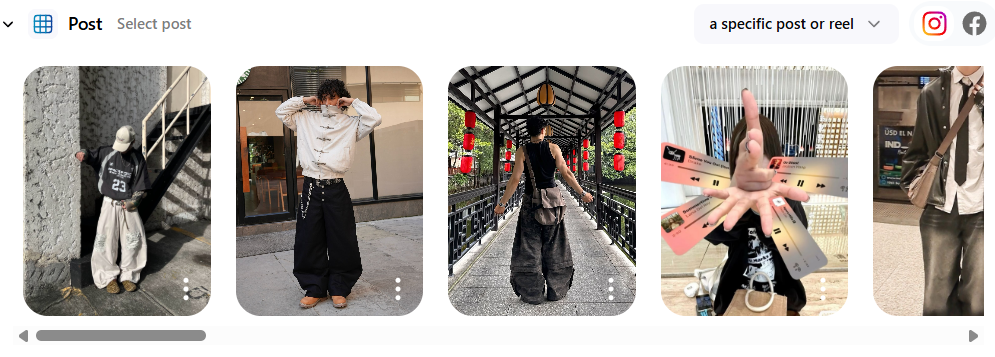
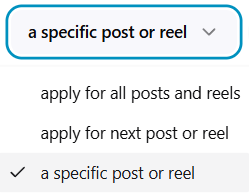
- Choose "Apply for next post or reel"
- Set your trigger keywords
- Configure your auto reply
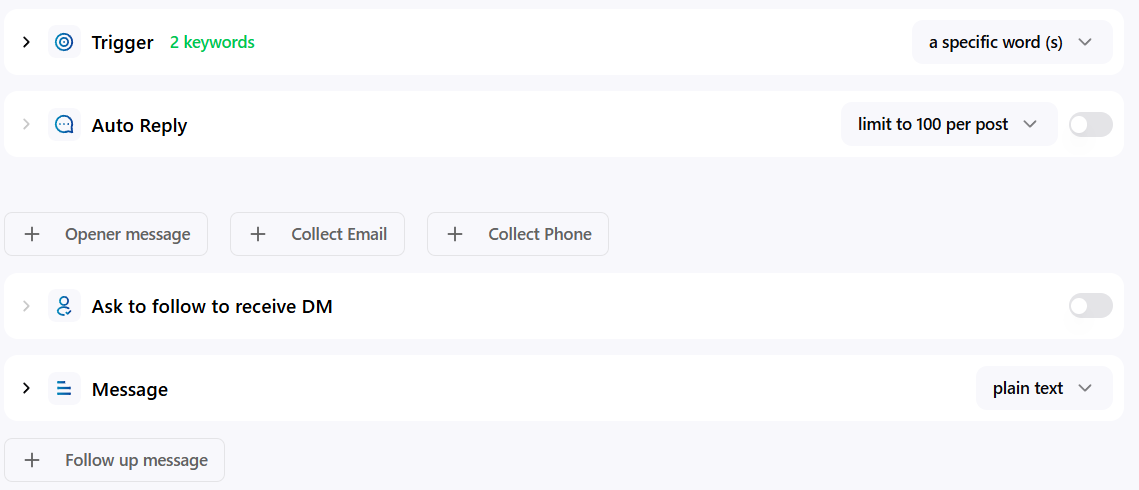
- Review and publish
Everything is organized into structured sections like:
- Post Selection
- Trigger
- Auto Reply
- Message
- Follow-up
It's clean, fast, and beginner-friendly.
Best For:
- Creators who want quick setup
- Marketers launching campaigns fast
- Users who prefer a simple configuration screen
- Scheduling automation for an upcoming Instagram post in minutes
Option 2: Flow Builder
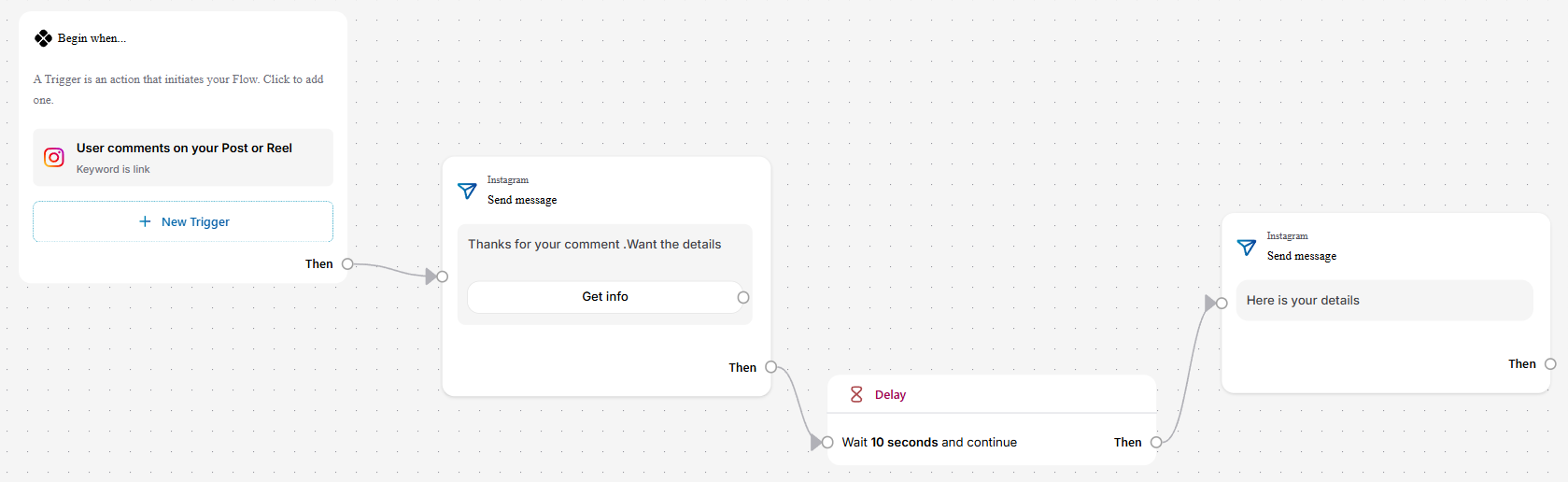
The Flow Builder gives you a visual, node-based interface.
Instead of filling out sections in one structured page, you:
- Select the "Next Post or Reel" option as given below
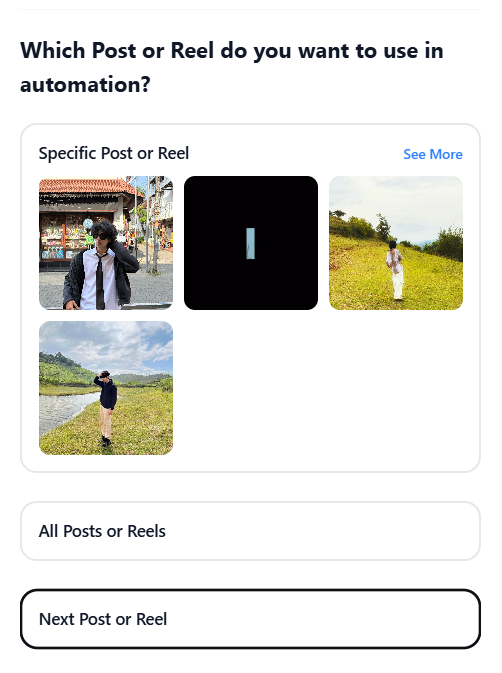
- Add nodes (Trigger, Message, Delay, Condition, etc.)
- Connect them visually
- Design your automation step-by-step
- Control how conversations branch
Below is an example of how nodes can be connected.
You can schedule the same automation for:
- Your next post
- All future posts
- A specific post or reel
But instead of a linear setup, you design the automation like a flowchart.
Best For:
- Visual thinkers
- Advanced DM funnels
- Multi-path conversations
- Users who want more structural clarity
Which One Should You Use?
If you want to quickly schedule an automation for your next Instagram post, the Basic Automation interface is perfect.
If you prefer designing structured DM funnels visually, use Flow Builder.
The power is the same.
The experience is different.
Feature Comparison
| Feature | Basic Automation | Flow Builder |
|---|---|---|
| Schedule for Next Post | ✅ Yes | ✅ Yes |
| Apply to All Future Posts | ✅ Yes | ✅ Yes |
| Keyword Triggers | ✅ Yes | ✅ Yes |
| Auto DM Replies | ✅ Yes | ✅ Yes |
| Collect Emails / Phone | ✅ Yes | ✅ Yes |
| Multi-Step Automation | ❌ No | ✅ Yes |
| Interface Style | Structured Form | Visual Node-Based |
| Setup Style | Linear, Guided | Drag/Click Node Connections |
| Best For | Quick & Simple Setup | Visual Flow Design |
| Complexity Level | Beginner-Friendly | Flexible & Visual |
Check out post scheduling right now!
Summary
Scheduling automations in LinktoDM allows you to set up your Instagram DM automation in advance — whether for your next post, a specific reel, or all future content. Instead of manually replying to comments, you can schedule auto DMs for upcoming posts and automatically trigger messages based on keywords.
LinktoDM offers two ways to schedule Instagram automation: the Basic Automation interface and the visual Flow Builder. Both allow you to automate DMs for comments, collect leads, and build complete DM funnels before your content goes live.
By scheduling your Instagram automation campaigns ahead of time, you ensure instant engagement, better response rates, and a fully automated DM system the moment your post is published.

'%3e%3cpath%20d='M14.8156%200H1.18125C0.528125%200%200%200.515625%200%201.15313V14.8438C0%2015.4813%200.528125%2016%201.18125%2016H14.8156C15.4688%2016%2016%2015.4813%2016%2014.8469V1.15313C16%200.515625%2015.4688%200%2014.8156%200ZM4.74687%2013.6344H2.37188V5.99687H4.74687V13.6344ZM3.55938%204.95625C2.79688%204.95625%202.18125%204.34062%202.18125%203.58125C2.18125%202.82188%202.79688%202.20625%203.55938%202.20625C4.31875%202.20625%204.93437%202.82188%204.93437%203.58125C4.93437%204.3375%204.31875%204.95625%203.55938%204.95625ZM13.6344%2013.6344H11.2625V9.92188C11.2625%209.0375%2011.2469%207.89687%2010.0281%207.89687C8.79375%207.89687%208.60625%208.8625%208.60625%209.85938V13.6344H6.2375V5.99687H8.5125V7.04063H8.54375C8.85938%206.44063%209.63438%205.80625%2010.7875%205.80625C13.1906%205.80625%2013.6344%207.3875%2013.6344%209.44375V13.6344Z'%20fill='%23B1B1B1'/%3e%3c/g%3e%3cdefs%3e%3cclipPath%20id='clip0_6304_15414'%3e%3crect%20width='16'%20height='16'%20fill='white'/%3e%3c/clipPath%3e%3c/defs%3e%3c/svg%3e)

