



If your Instagram DM went to the Hidden or Requests folder, you're not alone. Many creators and businesses using Instagram automation notice that their automated messages sometimes appear in the Hidden inbox or show a shortened preview. This often leads to confusion, with users wondering whether their Instagram automation tool is cutting off messages or sending incomplete DMs. The truth is, this behavior is controlled entirely by Instagram's messaging system — especially when sending DMs to non-followers. In this guide, we'll explain why Instagram DMs go to the Hidden folder, why automated messages may look truncated, and what actually happens behind the scenes when someone receives an Instagram automation message.
What Is the Instagram Hidden / Requests Folder?

The Instagram Hidden folder and Instagram message requests are part of Instagram's built-in filtering system for direct messages. When someone sends you an Instagram DM and you do not follow them back, the message does not go directly to your Primary inbox. Instead, it is placed inside the DM request folder, also known as the Requests or Hidden folder.
What Are Instagram Message Requests?
Instagram message requests are DMs sent by users you don't follow. These messages are separated from your main inbox to protect users from spam, unwanted promotions, and unknown contacts. Until you accept the request, the conversation remains in the Requests section.
This is especially common when receiving an Instagram DM from a non-follower, whether it's sent manually or through automation.
What Is the Instagram Hidden Folder?
The Instagram Hidden folder is an additional filter within message requests. Instagram's system automatically moves certain messages there if they are detected as promotional, bulk, or potentially spam-like. This filtering is algorithm-based and applies to all accounts — including business and creator accounts.
If your automated DM appears in the Instagram hidden folder, it does not mean the message was sent incorrectly. It simply means Instagram categorized it as a request from someone the recipient does not follow.
Why Does Instagram Use the Requests & Hidden Folder?
Instagram uses the message request and hidden folder system to:
- Prevent spam and mass unsolicited messages
- Protect users from unknown senders
- Reduce unwanted promotional DMs
- Give users control over who can message them
This means that when you send an Instagram DM to a non-follower, the platform automatically routes it through the DM request folder first.
How Instagram Handles DMs from Non-Followers
When an Instagram automation tool sends a message to someone who does not follow the account:
- The DM is successfully delivered.
- Instagram places it in the message requests section.
- In some cases, it may appear in the hidden folder.
- The recipient must accept the request before the conversation moves to Primary.
This behavior is entirely controlled by Instagram's messaging infrastructure — not by the automation tool itself.
Why Did My Instagram Automation Message Go to Hidden?

If your Instagram automation DM is in Requests or you notice your auto DM going to the Hidden folder, the reason is simple: Instagram's built-in messaging rules automatically filter messages from non-followers.
This usually happens when:
- The user does not follow your account
- The message is sent through automation
- The conversation has not been accepted yet
- There has been no prior interaction in the DM thread
When these conditions are met, Instagram does not deliver the message directly to the Primary inbox. Instead, it places the automated message into:
- The Instagram message requests section
- Or, in some cases, the Hidden folder
This applies to all accounts — whether the DM is sent manually or through automation.
Why Instagram Filters Automation DMs
When sending an Instagram DM from a non-follower, the platform treats it as a message request by default. Instagram's system is designed to protect users from spam, unsolicited promotions, and bulk messaging.
As a result:
- An Instagram automation DM in Requests is completely normal
- An automated Instagram message not showing in Primary is expected behavior
- An auto DM going to the Hidden folder does not mean the message failed
The message is delivered — it is simply filtered by Instagram until the recipient accepts it.
Important Clarification
This is Instagram's messaging behavior, not a LinktoDM issue.
LinktoDM sends the full message correctly through Instagram's official API. Instagram then decides where that message appears inside the recipient's inbox.
There is no truncation, partial sending, or delivery failure happening on the automation side.
Why Does the Message Preview Look Cut Off?
If you've noticed your Instagram DM preview cut off or your Instagram message not showing fully, you're not alone. Many users assume that their automation tool is sending incomplete messages when they see a shortened preview inside the Requests or Hidden folder.
But here's what's actually happening.
Instagram sometimes displays a truncated preview of messages that land in the message requests or hidden folder. This means the platform only shows part of the message until the recipient accepts the conversation.
Why Instagram Shortens the Message Preview
When an Instagram DM from a non-follower is sent:
- The message is delivered successfully.
- Instagram places it inside the Requests or Hidden folder.
- The platform may show only a partial preview.
- The full message becomes visible after the request is accepted.
So if you're wondering:
- "Why is my Instagram DM shortened?"
- "Why is my Instagram message truncated?"
- "Why is my automated Instagram message not showing fully?"
The answer is simple: Instagram limits full visibility of message requests until the chat is accepted.
This is part of Instagram's spam protection and inbox filtering system.
Important Clarification
The automation sends the full message every time.
There is no truncation happening on the automation side.
There is no partial sending.
There is no message cutting.
LinktoDM (or any automation tool using Instagram's official API) sends the complete message exactly as configured. The shortened preview is purely an Instagram interface behavior inside the DM request folder or hidden folder.
What Happens After the User Accepts the Message?

Once the recipient accepts the message request, everything changes.
If the user:
- Replies to the DM
- Moves the message from Requests to Primary
- Or already follows your account
Then the conversation is treated as a normal Instagram chat.
The Full Message Appears Normally
After the request is accepted:
- The Instagram DM renders in full
- There is no truncation
- There is no preview limitation
- The message displays exactly as it was sent
If someone previously saw an Instagram DM full message not showing, it will now appear completely once the chat moves out of the Requests or Hidden folder.
Why This Happens
Instagram limits visibility only while the message is inside the DM request folder. Once the recipient accepts it or moves the message from Requests to Primary, Instagram removes those preview restrictions.
This means:
- The automation sent the full message
- The message was delivered successfully
- Instagram simply restricted the preview before acceptance
After acceptance, the message behaves like any normal conversation.
How to Reduce the Chances of Messages Going to Hidden
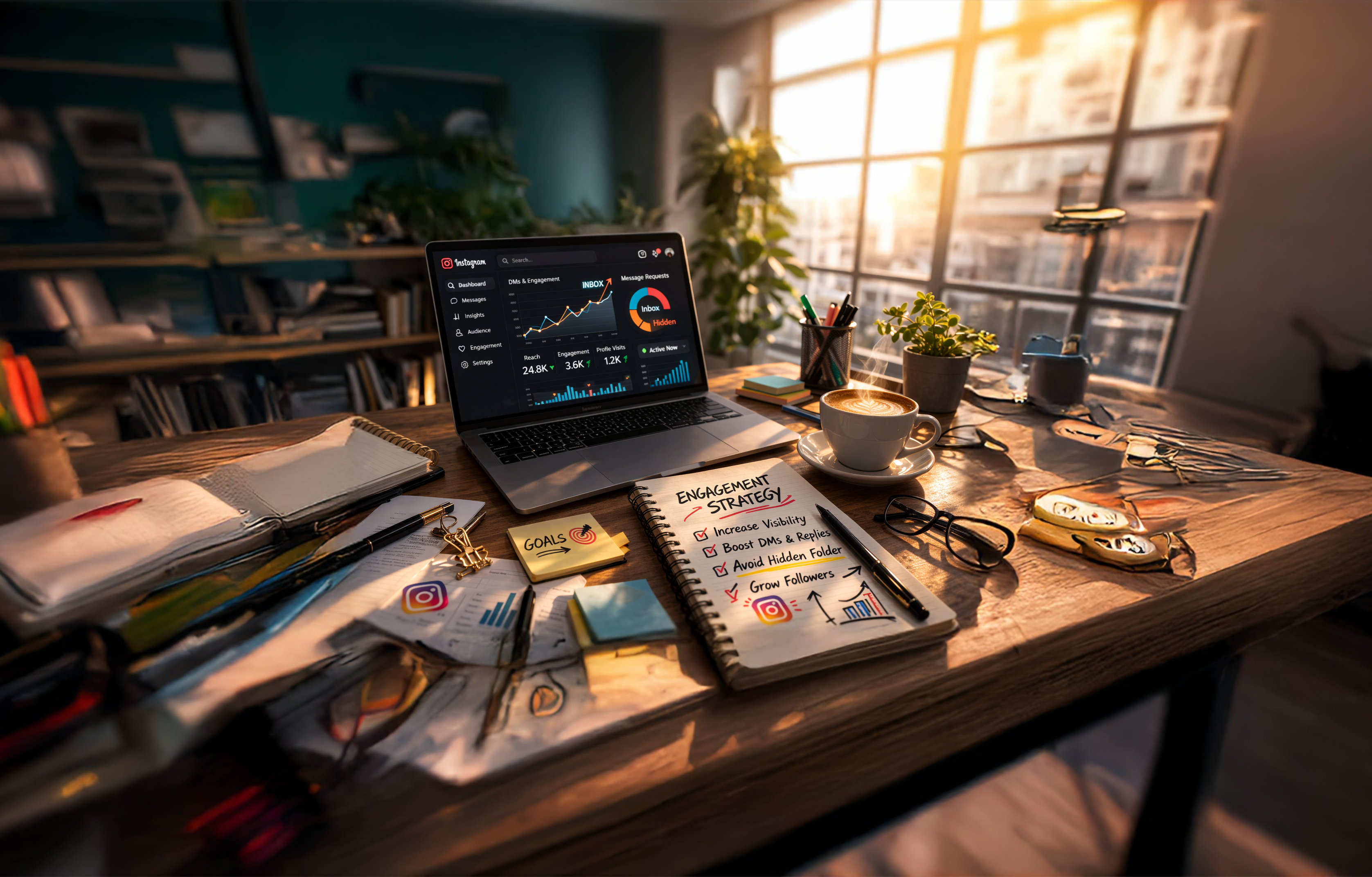
While you cannot completely control Instagram's filtering system, you can take steps to reduce the chances of your Instagram DM going to the Hidden folder. Since Instagram places messages from non-followers into Requests by default, your goal is to build familiarity and encourage interaction before or immediately after sending automation.
Here are proven Instagram DM best practices to help you avoid unnecessary filtering.
1. Use an Opener Message to Move the Chat to Primary
One of the most effective ways to reduce the chances of your Instagram DM going to the Hidden or Requests folder is by using an Opener Message.
An opener message is the first automated message your audience receives when they trigger your automation. Inside this message, you can include a button that encourages users to interact with the conversation.
For example, you can send a message like:
"Hey {{username}}! Just tap the button below so I can send you the link."
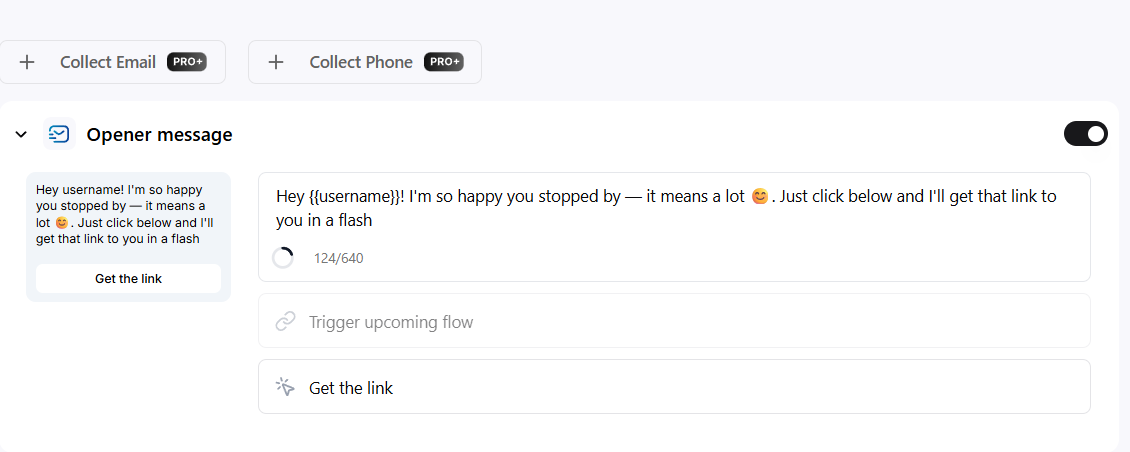
When the user clicks the button or replies:
- The conversation becomes active
- Instagram recognizes the interaction
- The chat can move out of Message Requests
- The full message becomes visible
You can also guide users with a simple instruction such as:
"Move this chat to Primary or General so you don't miss the next message."
Why this works?
This small interaction significantly improves message visibility and helps your automation behave like a normal conversation.
Using an opener message with a button is one of the best ways to prevent confusion caused by Instagram message requests or hidden DMs.
2. Use the "Ask to Follow" Feature
The Ask to Follow feature ensures users follow your account before unlocking content in DMs.
This strategy:
- Reduces message request filtering
- Builds stronger engagement
- Improves inbox placement
- Creates higher-quality interactions
If your automation depends on sending links or gated resources, this method significantly improves visibility.
3. Encourage Users to Follow You First
One of the simplest ways to prevent Instagram DM going to hidden is to increase follower connection before sending gated content.
When a user follows you:
- Messages are less likely to be treated as unknown
- Conversations move directly into Primary
- Filtering risk decreases
If you're running a campaign (like a giveaway or free guide), encourage users to follow before commenting.
4. Warm Up Your Audience
Instagram favors accounts that already have engagement history.
To reduce filtering:
- Post consistently
- Engage in comments
- Reply manually to some users
- Build trust before sending automated DMs
Warming up your audience helps Instagram see your account as legitimate and active, which may reduce aggressive filtering.
5. Encourage Users to Reply Quickly
When a user replies to your message:
- The chat moves out of Requests
- Instagram removes preview restrictions
- The full DM becomes visible
You can include a simple line like:
"Reply YES once you receive this."
This encourages interaction and helps move the conversation to Primary faster.
6. Use Public Auto-Replies to Guide Users
Public comment replies like:
"Check your DMs 📩"
Help users know a message was sent.
If someone doesn't see your message immediately, this reminder encourages them to check their Instagram message requests section.
This reduces confusion and improves campaign performance.
Final Thoughts on Instagram Message Filtering
You cannot completely control Instagram's inbox algorithm. However, by following these Instagram DM best practices, you can minimize automated DMs landing in Requests, improve visibility, increase acceptance rates, and reduce support confusion. Understanding how to avoid Instagram message requests/hidden folder isn't about bypassing Instagram's system — it's about working with it strategically.

'%3e%3cpath%20d='M14.8156%200H1.18125C0.528125%200%200%200.515625%200%201.15313V14.8438C0%2015.4813%200.528125%2016%201.18125%2016H14.8156C15.4688%2016%2016%2015.4813%2016%2014.8469V1.15313C16%200.515625%2015.4688%200%2014.8156%200ZM4.74687%2013.6344H2.37188V5.99687H4.74687V13.6344ZM3.55938%204.95625C2.79688%204.95625%202.18125%204.34062%202.18125%203.58125C2.18125%202.82188%202.79688%202.20625%203.55938%202.20625C4.31875%202.20625%204.93437%202.82188%204.93437%203.58125C4.93437%204.3375%204.31875%204.95625%203.55938%204.95625ZM13.6344%2013.6344H11.2625V9.92188C11.2625%209.0375%2011.2469%207.89687%2010.0281%207.89687C8.79375%207.89687%208.60625%208.8625%208.60625%209.85938V13.6344H6.2375V5.99687H8.5125V7.04063H8.54375C8.85938%206.44063%209.63438%205.80625%2010.7875%205.80625C13.1906%205.80625%2013.6344%207.3875%2013.6344%209.44375V13.6344Z'%20fill='%23B1B1B1'/%3e%3c/g%3e%3cdefs%3e%3cclipPath%20id='clip0_6304_15414'%3e%3crect%20width='16'%20height='16'%20fill='white'/%3e%3c/clipPath%3e%3c/defs%3e%3c/svg%3e)

