



Instagram has become a key place where people reach out to brands and creators through messages. Replying quickly keeps your audience interested, but answering every message manually can take a lot of time. Auto replies solve this by sending instant responses for common questions. With Instagram auto replies, you can stay responsive, save effort, and keep conversations going even when you’re not online. This guide will show you how to set them up step by step.
Why Every Creator Needs Auto Replies
Creators receive countless Instagram messages from followers, brands, and potential customers. Failing to respond quickly can mean lost opportunities, reduced engagement, and a weaker online presence.
That’s why auto replies on Instagram are no longer optional — they’re essential. Auto replies ensure instant responses, keep your audience engaged, and maintain professional communication even when you’re offline. By automating your Instagram replies, you protect your growth, save valuable time, and make sure you never miss an important message again.
Step 1: Switch to a Business or Creator Account
Before you can set up Instagram auto replies, you need to make sure your account is ready for automation. Instagram only allows advanced messaging and automation features on Business or Creator profiles. If you’re still using a personal account, switching is quick and free — and it unlocks powerful tools that help you manage messages more efficiently.
Go to your Instagram settings → Account Types and Tools → Switch to Professional Account → Choose Account Type (Creator/Business Account) → Select Category (Optional) → Review Contact Info → Tap "Done" → Account Successfully Switched
Next, check your privacy and message settings to ensure that message requests from followers and new users are allowed (This is important because auto replies can only work if your inbox can receive messages freely).
Go to your Instagram settings → Scroll to Messages and Story Replies → Under Message Requests, choose: → Everyone
Once these settings are in place, your Instagram account becomes fully optimized for automated replies. This step lays the foundation for faster responses, better communication, and improved engagement with your audience.
Step 2: Confirm your inbox is ready
Open your Instagram Messages. You may see:
- Primary inbox (main messages)
- General inbox (less important chats)
- Message requests (messages from new users)
These only appear for Business and Creator (Professional) accounts. They allow you to organize chats:
- Primary → important conversations
- General → less important or later replies
Personal accounts do not have Primary and General tabs. They only have:
- Main inbox
- Message requests
Step 3: Setup your Auto Reply
After you have made sure that all the previous steps have been completed. It is time to step in and automate your DMs. Automating DM replies can easily be done in a few clicks.
Open your browser and navigate to the LinktoDM website. From there, use LinktoDM to automate your Instagram replies for posts and DMs. Its simple interface makes setting up auto responses quick and beginner-friendly, helping you reply instantly and stay connected with your audience.
LinktoDM is one of the most widely used Instagram and Facebook automation tools. It connects directly with your Instagram account and lets you set up automated responses for your posts in just a few minutes — no technical skills needed.
Since it is beginner friendly, anyone can set up message automation without confusion. Everything is clearly organized, so you can create reply triggers, customize messages, and manage conversations from one simple dashboard.
Step 4: Navigate to LinktoDM
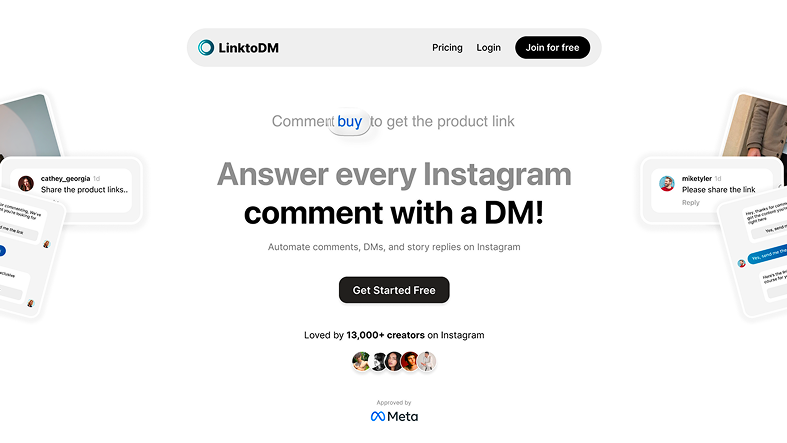
Click on the “Join For Free” tab, or select any plan that you like.
Step 5: Join for Free
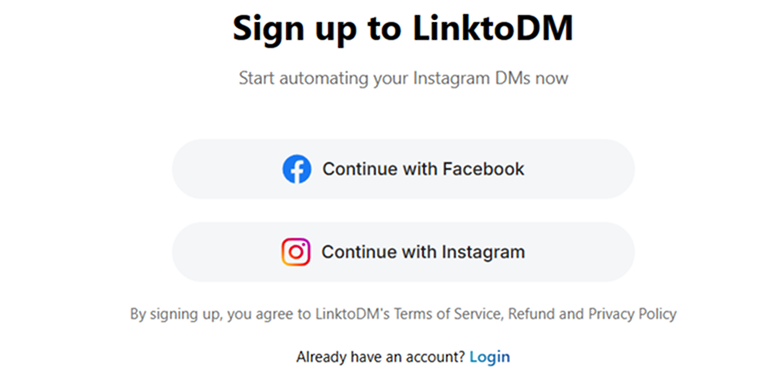
Connect your Instagram or Facebook Account that you want to automate.
Step 6: Create a New Automation
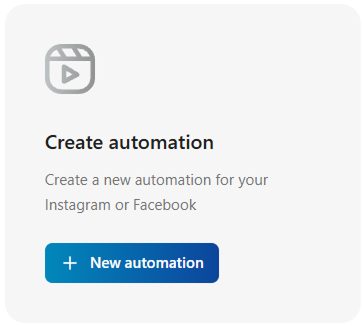
Step 7: Select an Automation Option
Select Chat Automation to automatically reply to Instagram DMs.
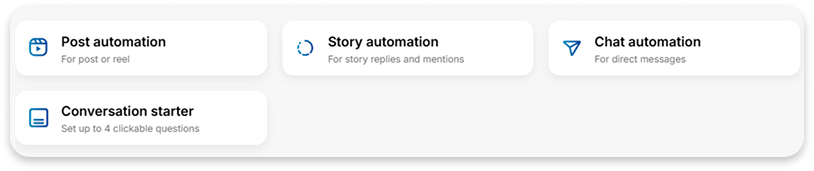
Choose the type of automation that fits your goal. You can automate replies for Posts, Stories, or Direct Messages.
Post Automation - for Faster Comment Replies
Instagram engagement isn’t limited to direct messages. A huge part of audience interaction happens through post comments. With LinktoDM’s Comment Automation, you can instantly respond to these interactions without manually checking your phone all day.
When someone comments on your post, LinktoDM automatically sends a friendly reply or guided message. This transforms simple reactions into real conversations, keeping your followers engaged and making them feel noticed. The faster your responses, the stronger your connection with your audience.
By automating comment replies, you increase engagement, save time, and make sure no interaction goes unanswered — even when you’re busy or offline.
Here is a step-by-step explanation on how to automate stories and posts on Instagram :
- Open LinktoDM Dashboard — Go to your LinktoDM automation dashboard in your browser.
- Create New Automation — Click Create Automation.
- Select Post Automation — From the list of automation types, pick Post Automation.
-
Choose the post — select the post you wish to automate.
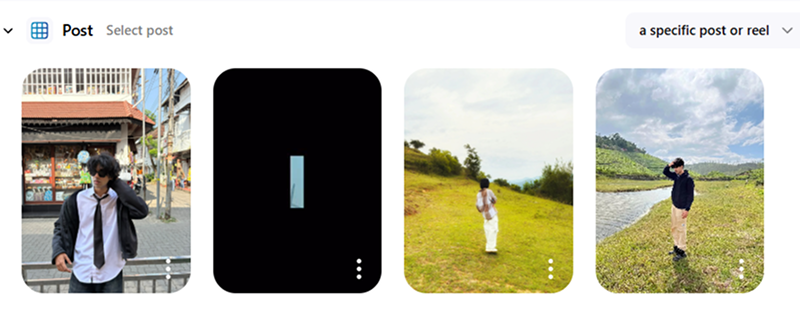
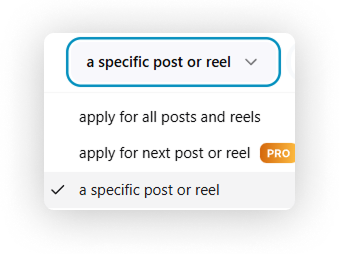
← Choose where this automation should work
-
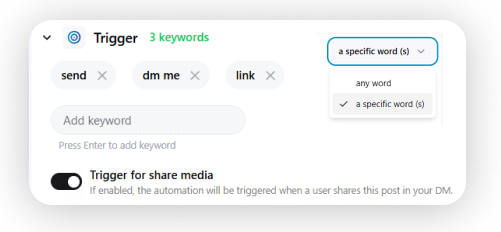
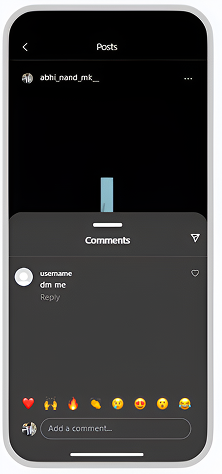
Add Triggers — Set conditions like “when someone reacts to your story” or “when someone comments on a post.” Triggers can be certain keywords like — “hey”, “link”, “DM”, ”Send” , etc.
-
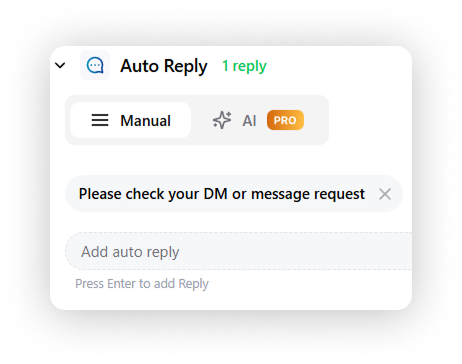
Add Auto Replies — Write the comment reply that will be sent automatically when your automation is triggered. You can use Manual or AI replies and add multiple response variations to keep conversations natural.
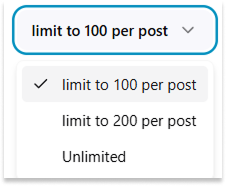
Control how many automated replies are sent per post or reel. Choose from 100, 200, or unlimited replies to manage engagement smoothly.
-
Write Your Auto Messages — Enter the replies or actions that will be sent automatically. Customize how you wish to reply to your audience.
Options such as:
- Opener Message
- Collect E-Mail
- Collect Phone Number
- Follow Up Message
- Normal Messages
are available to use.
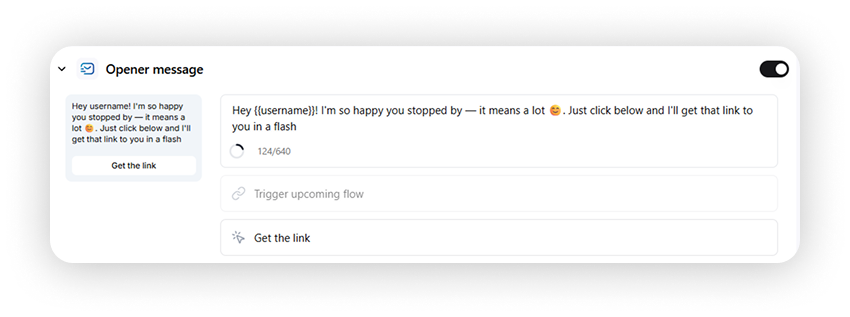
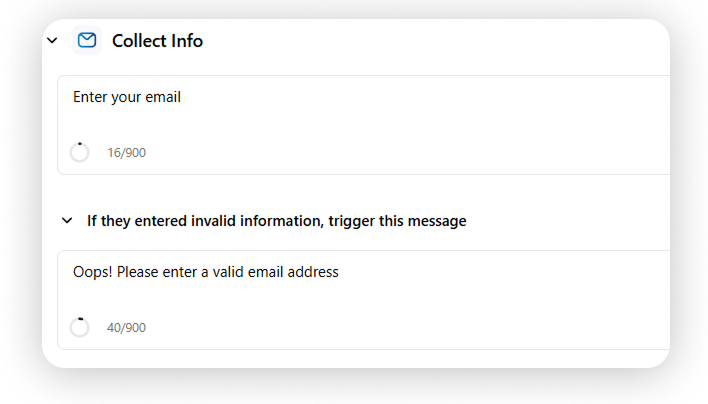
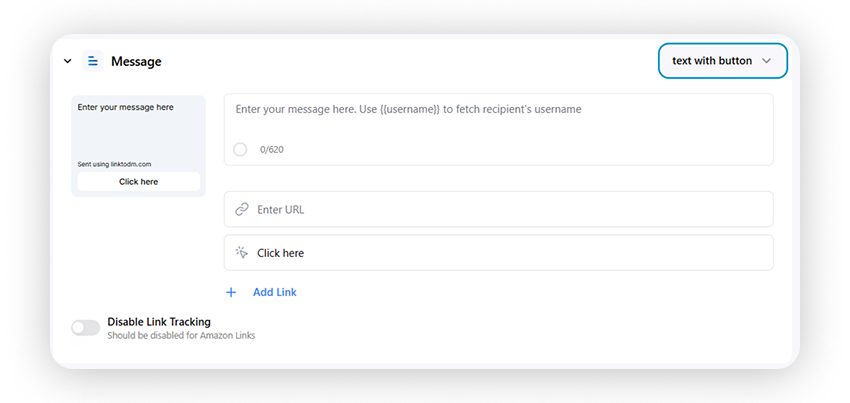
- Save and Activate — Once everything looks good, save and turn on your automation.
And just like that, you’ve successfully built a powerful Instagram comment automation! 🎉 You’ve not only saved hours of manual replying but also created a smarter, faster, and more engaging experience for your followers. From now on, every comment on your posts can turn into an instant conversation — helping you grow your audience, strengthen connections, and stay consistent without extra effort. Sit back, relax, and let LinktoDM handle the conversations while you focus on creating great content.
Story Automation - for Faster Story Engagement
Stories are where real-time engagement happens on Instagram. Every reaction, emoji tap, or story reply is a chance to start a conversation.
With LinktoDM’s Story Automation, you can capture these moments instantly and reply automatically, without being glued to your phone.
Instead of letting story interactions disappear in your inbox, LinktoDM turns them into immediate, friendly responses that keep your audience involved. This creates smoother conversations, stronger relationships, and a more active community around your content.
By automating your story replies, you free up your time while making sure every interaction is acknowledged — helping your Instagram presence stay responsive, personal, and consistently engaging.
Here is a step-by-step explanation on how to automate stories and posts on Instagram :
- Open LinktoDM Dashboard — Go to your LinktoDM automation dashboard in your browser.
- Create New Automation — Click Create Automation.
- Select Story Automation — From the list of automation types, pick Story Automation.
-
Choose the Story — Select the story you want to automate
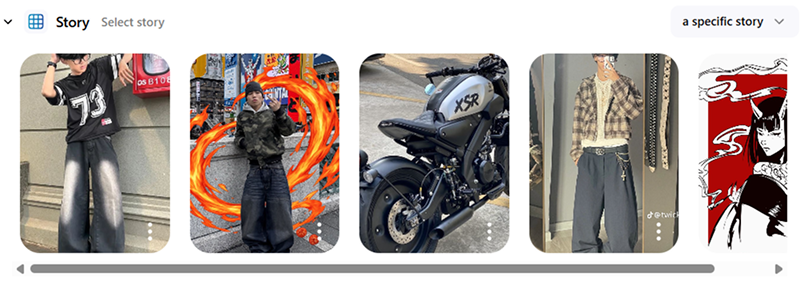
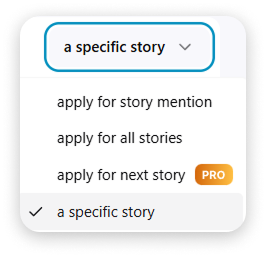
← Choose where this automation should work
-
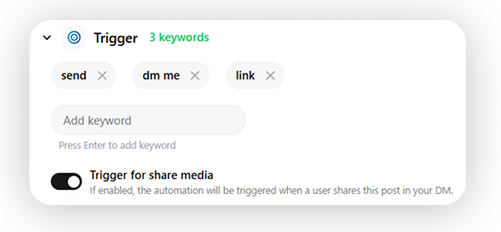
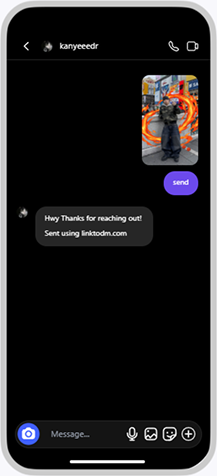
Add Triggers — Set conditions like “when someone reacts to your story” or “when someone comments on a post.” Triggers can be certain keywords like — “hey”, “link”, “DM”, ”Send” , etc.
-
Write Your Auto Messages — Enter the replies or actions that will be sent automatically. Customize how you wish to reply to your audience.
Options such as:
- Opener Message
- Collect E-Mail
- Collect Phone Number
- Follow Up Message
- Normal Messages
are available to use.
- Save and Activate — Once everything looks good, save and turn on your automation.
And just like that, your Instagram Story Automation is live! 🎉 Every story reaction and reply can now turn into an instant conversation without you lifting a finger. Sit back and let LinktoDM handle your story interactions while you focus on creating content your audience loves.
Chat Automation — Auto Replies for Direct Messages
With Chat Automation, you can design how conversations start and where they lead. Set triggers, create reply buttons, and guide users — all automatically, without manual replies.
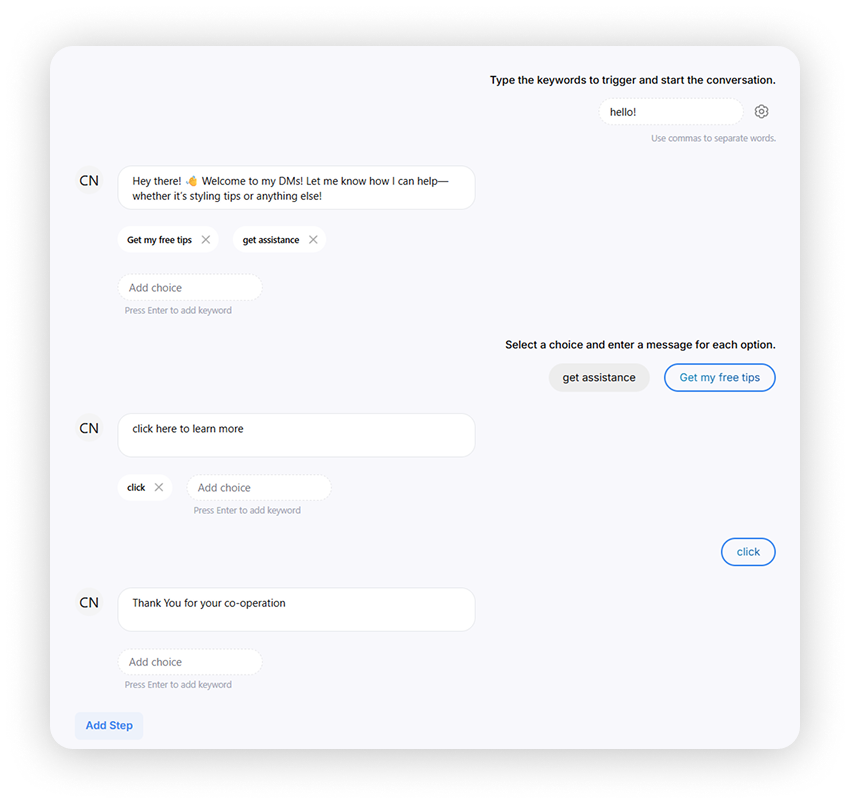
Preview of how your automated DM will look to users
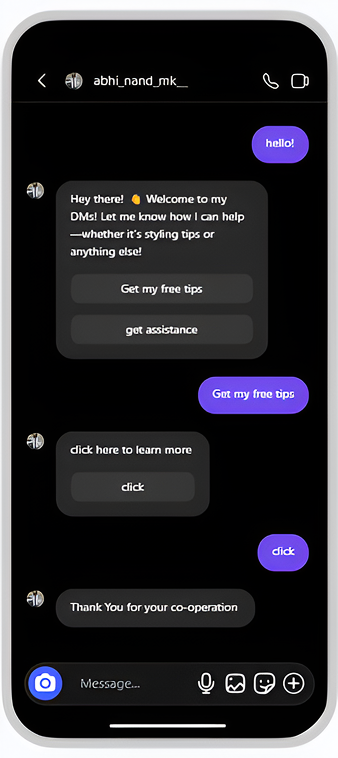
And that’s it — your Instagram chat automation is now live! 🎉 From this moment on, your inbox works for you. Every new message gets an instant, friendly response, complete with guided options that lead users exactly where you want.
No more :
- late replies
- missed opportunities
- repetitive typing.
You’ve just turned your DMs into a smart, time-saving assistant that keeps your audience engaged even while you sleep.
Use Ready-Made Templates to Get Started Faster
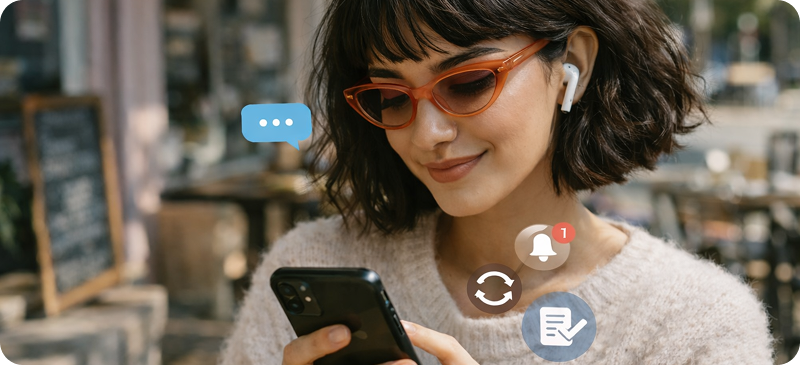
If building an automation flow from scratch feels overwhelming, LinktoDM has you covered with ready-made templates. These templates are pre-built automation setups designed for common Instagram goals like replying to comments, sending welcome DMs, or collecting contact details. With just one click, you can import a template and have a working automation in seconds.
Templates remove the guesswork from setting up Instagram auto replies. You don’t need technical knowledge or experience — simply pick a template, customize the message, and activate it. This makes automation incredibly beginner-friendly while still giving you full control to edit and personalize your workflows later.
Using templates saves time, reduces setup effort, and ensures you start with proven engagement strategies that actually work.
Reply to Missed Comments and Messages Automatically with BackTracking
On Instagram, not every comment or interaction happens immediately after you post. Some followers reply hours or even days later — and manually tracking these missed interactions can be frustrating. That’s where LinktoDM’s Backtrack feature comes in.
Backtrack Automation allows you to automatically send replies to comments and interactions from previous posts, even up to several days later. This means no follower is left without a response, and no engagement opportunity is lost. Whether it’s an old post gaining new attention or a delayed comment from a potential customer, LinktoDM makes sure every interaction is handled.
By capturing missed interactions, Backtrack Automation helps you maintain strong audience connections, boost engagement, and appear consistently responsive — without constantly checking your notifications.
Where Can I Find Backtracking In LinktoDM ?
- Create a post automation
- Go to the dashboard which shows all your automations
-
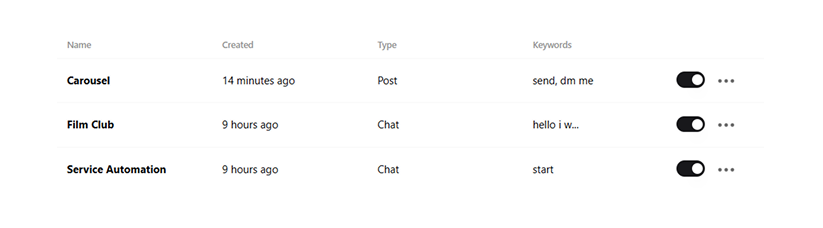
Tap the three-dot icon on the post you want to backtrack. -
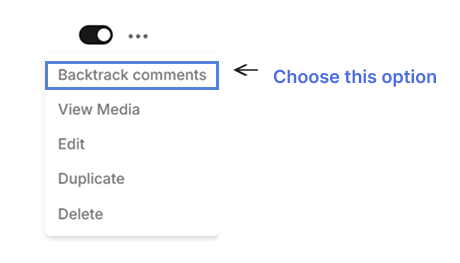
Click “Backtrack Now” -
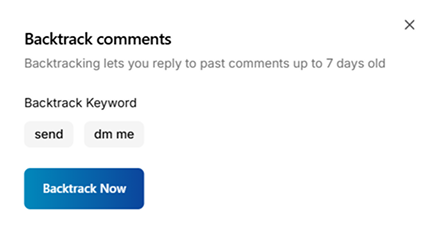
And you’re done! Backtracking is now active on your post, so no comment or message will go unanswered. ✨
Re-Engage Your Audience with Follow-Up Messages
With LinktoDM’s Follow-Up Messages, you can automatically send a second message to users after their first interaction with your automation. This keeps conversations going, reminds users about your offer or content, and increases the chances of meaningful engagement.
Follow-Up Messages work on autopilot. Once someone receives your automated DM, LinktoDM can send a friendly reminder or helpful message later — whether it’s after a few hours or the next day. This feature helps you stay present in your audience’s inbox without manually sending reminders.
By using Follow-Up Messages, you improve response rates, build stronger connections, and make sure your audience never forgets to complete an action — all while saving time and effort.
You can set up Follow-Up Messages in two simple ways:
- During Post Automation setup
- By editing an existing automation using the “Edit” option
- Scroll down on the automation page, and you’ll find an option called “Follow-Up Message.”
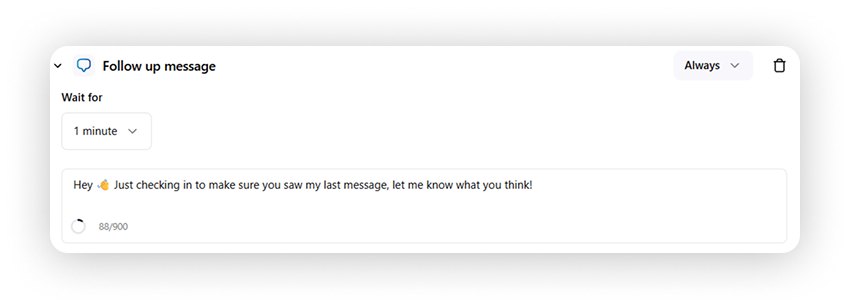
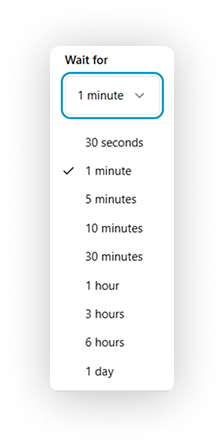
You can adjust the waiting time and set conditions for when the Follow-Up Message should be sent using these options.
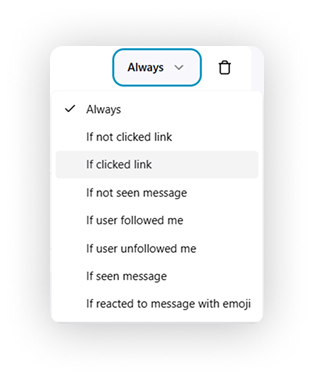
And that’s it! You’ve now successfully set up Follow-Up Messages, meaning your conversations no longer stop after the first reply. Your Instagram now works for you — automatically checking in, re-engaging followers, and guiding users toward meaningful actions. With LinktoDM handling your follow-ups in the background, you’ve built a smarter, more efficient engagement system that saves time and grows your audience while you focus on creating.
Grow Your Followers with Ask-to-Follow Triggers

Every comment, story reaction, or message is an opportunity to turn a viewer into a follower. With LinktoDM’s Ask-to-Follow Triggers, you can automatically encourage users to follow your Instagram account before giving them access to content, links, or special offers.
When someone interacts with your post or story, LinktoDM can send a friendly automated message asking them to follow you first. Once they follow, the automation continues and delivers the promised content. This simple step helps you convert casual interactions into real followers — without sounding pushy or manual.
By using Ask-to-Follow Triggers, you grow your follower count naturally, improve visibility on Instagram, and build a stronger audience base — all while LinktoDM handles the process automatically in the background.
Where to find the Ask-to-Follow feature in LinktoDM :
- Open your LinktoDM Dashboard in your browser.
- Create a new automation or edit an existing one.
- Inside the automation builder, scroll to the flow settings.
- Enable the “Ask-to-Follow” option.
- Save and publish your automation.
Analytics & Performance Tracking – Measure What Works
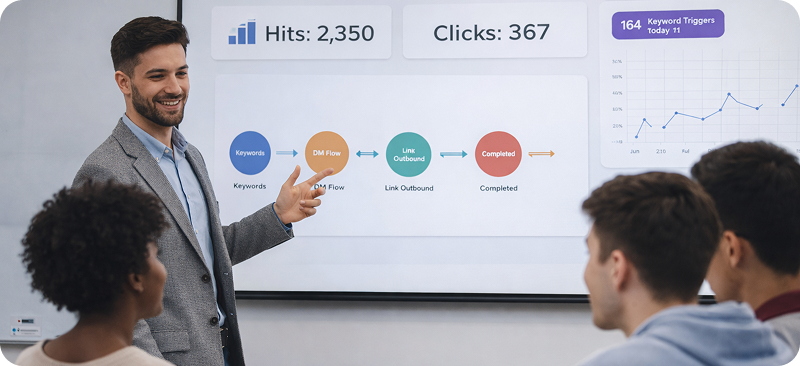
Once your automations are live, the next step is understanding how well they perform. LinktoDM’s built-in analytics dashboard makes this incredibly simple. For every automation you create, you can view key performance metrics like hits, clicks, and engagement activity — all in one clean interface.
This means you no longer have to guess whether your Instagram automation strategy is working. You’ll instantly see which posts, stories, or DM flows are driving conversations, converting followers, and generating real interaction. With these insights, you can refine your content, adjust reply flows, and continuously improve audience engagement — all backed by data, not assumptions.
In short: you create, LinktoDM tracks, and you grow smarter every day.
Once your automations are published, checking their performance is simple. Follow these steps to access your analytics:
Step-by-Step Guide :
- Open your LinktoDM Dashboard in your browser.
- On the dashboard, you’ll see a list of all your created automations.
- Locate the automation you want to analyze.
- In the automation row, you’ll find columns showing Hits and Clicks.
- Hits tell you how many users triggered that automation.
- Clicks show how many users clicked links inside your automated messages.
- Click on an automation to view more detailed performance insights if needed.
By regularly checking your analytics, you can improve reply messages, test new keywords, and optimize your automation flows for stronger engagement and faster Instagram growth.
Frequently Asked Questions
How can I use Auto DMs in LinktoDM?
To use Auto DMs in LinktoDM, open your dashboard, create a Chat Automation, choose an Instagram message trigger, write your automated reply, and publish it. Once active, LinktoDM automatically sends Instagram DM replies for you, helping you save time, boost engagement, and grow your audience effortlessly.
Do I need a Business or Creator account to use LinktoDM?
Yes, Instagram requires a Business or Creator account to unlock advanced messaging features needed for Instagram DM automation. Switching to a professional account takes only a minute, is completely free, and enables tools that help boost engagement and automate replies.
Can I edit or delete my automations later?
Absolutely. From your LinktoDM dashboard, you can easily edit, duplicate, pause, or delete Instagram automations at any time. This gives you full control to optimize your automation flows, improve engagement, and manage Instagram DM automation effortlessly.
Will automation make my account look spammy?
Not at all. LinktoDM lets you create natural and personalized Instagram auto replies with smart conditions, so your messages feel human and genuine. This helps you automate Instagram DMs, maintain authentic conversations, and boost follower engagement without sounding robotic.
Can I personalize my messages?
Yes, you can fully personalize your automated Instagram replies in LinktoDM by writing natural messages and setting smart conditions based on user actions. This allows you to automate Instagram DMs, deliver tailored responses, and boost follower engagement while keeping conversations authentic.
Will using Instagram automation hurt my engagement?
No, using Instagram automation with LinktoDM will not hurt your engagement when set up correctly. In fact, automated Instagram replies help you respond instantly, maintain active conversations, and increase follower engagement by ensuring no message or comment goes unanswered.

'%3e%3cpath%20d='M14.8156%200H1.18125C0.528125%200%200%200.515625%200%201.15313V14.8438C0%2015.4813%200.528125%2016%201.18125%2016H14.8156C15.4688%2016%2016%2015.4813%2016%2014.8469V1.15313C16%200.515625%2015.4688%200%2014.8156%200ZM4.74687%2013.6344H2.37188V5.99687H4.74687V13.6344ZM3.55938%204.95625C2.79688%204.95625%202.18125%204.34062%202.18125%203.58125C2.18125%202.82188%202.79688%202.20625%203.55938%202.20625C4.31875%202.20625%204.93437%202.82188%204.93437%203.58125C4.93437%204.3375%204.31875%204.95625%203.55938%204.95625ZM13.6344%2013.6344H11.2625V9.92188C11.2625%209.0375%2011.2469%207.89687%2010.0281%207.89687C8.79375%207.89687%208.60625%208.8625%208.60625%209.85938V13.6344H6.2375V5.99687H8.5125V7.04063H8.54375C8.85938%206.44063%209.63438%205.80625%2010.7875%205.80625C13.1906%205.80625%2013.6344%207.3875%2013.6344%209.44375V13.6344Z'%20fill='%23B1B1B1'/%3e%3c/g%3e%3cdefs%3e%3cclipPath%20id='clip0_6304_15414'%3e%3crect%20width='16'%20height='16'%20fill='white'/%3e%3c/clipPath%3e%3c/defs%3e%3c/svg%3e)

